Limited Time Offer!
For Less Than the Cost of a Starbucks Coffee, Access All DevOpsSchool Videos on YouTube Unlimitedly.
Master DevOps, SRE, DevSecOps Skills!
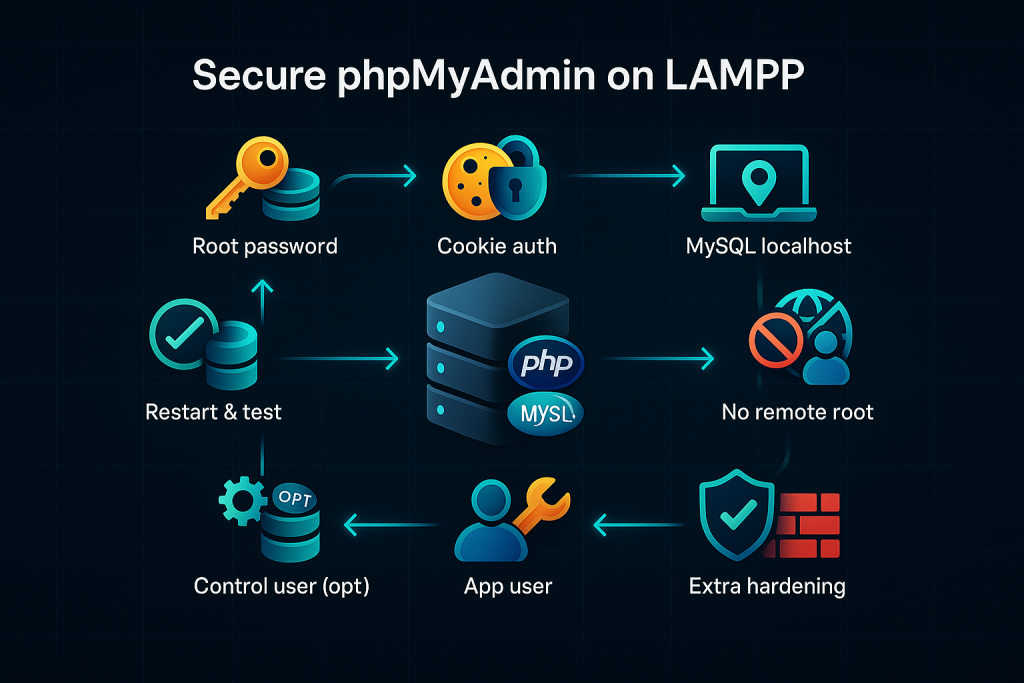
Admins running LAMPP under /opt/lampp with phpMyAdmin accessible over the web, who want to:
- Set or change the MySQL root password
- Stop phpMyAdmin from auto-logging in
- Use cookie authentication with a proper blowfish secret
- Restrict access to phpMyAdmin
- Harden MySQL (bind to localhost, disable remote root)
- Optionally configure phpMyAdmin’s control user and create a non-root app user
Prerequisites
- Shell access with
sudo - LAMPP installed in
/opt/lampp - phpMyAdmin located at
/opt/lampp/phpmyadmin
Step 1 — Set (or reset) the MySQL root password
If root currently has no password, set one:
sudo /opt/lampp/bin/mysqladmin -u root password 'NewStrongPassword'
If you prefer SQL (or need to reset from within MySQL):
/opt/lampp/bin/mysql -u root
ALTER USER 'root'@'localhost' IDENTIFIED BY 'NewStrongPassword';
FLUSH PRIVILEGES;
Use a long, random password. Store it securely.
Step 2 — Switch phpMyAdmin to cookie authentication
Open the config:
sudo nano /opt/lampp/phpmyadmin/config.inc.php
- Set a strong blowfish secret (32+ random characters):
$cfg['blowfish_secret'] = 'Uj9bLya8pF1m2Pq6dXr4A0wVtZk3Qh7Nw5sB2dRmYcK9tQ4hP3zJs8Qh1Lx0Aa';
Generate one:
openssl rand -base64 48
- Use cookie auth and do not hardcode root password:
$i = 0;
$i++;

$cfg['Servers'][$i]['auth_type'] = 'cookie';     // prompts for credentials
$cfg['Servers'][$i]['host']      = 'localhost';
$cfg['Servers'][$i]['AllowNoPassword'] = false;

// REMOVE or comment out these if present (they cause auto-login):
// $cfg['Servers'][$i]['user'] = 'root';
// $cfg['Servers'][$i]['password'] = '...';
Why:
auth_type = 'config'auto-logs in using stored credentials;cookieshows a login screen and stores only an encrypted session cookie.
Step 3 — (Optional) Configure phpMyAdmin “control user”
Your file lists:
$cfg['Servers'][$i]['controluser'] = 'pma';
$cfg['Servers'][$i]['controlpass'] = '';
$cfg['Servers'][$i]['pmadb'] = 'phpmyadmin';
... pma__* tables ...
Options:
- Simplest: comment these two lines if you don’t need advanced features:
// $cfg['Servers'][$i]['controluser'] = 'pma'; // $cfg['Servers'][$i]['controlpass'] = ''; - Enable advanced features: create the control user and set a password:
CREATE USER 'pma'@'localhost' IDENTIFIED BY 'StrongPMApassword'; GRANT SELECT, INSERT, UPDATE, DELETE ON phpmyadmin.* TO 'pma'@'localhost'; FLUSH PRIVILEGES;Then set:$cfg['Servers'][$i]['controluser'] = 'pma'; $cfg['Servers'][$i]['controlpass'] = 'StrongPMApassword';
Ensure the
phpmyadmindatabase andpma__*tables exist. If not, import the bundled schema:/opt/lampp/phpmyadmin/sql/create_tables.sql.
Step 4 — Restrict web access to phpMyAdmin
Open Apache’s XAMPP extras:
sudo nano /opt/lampp/etc/extra/httpd-xampp.conf
Find the block for phpMyAdmin (Alias /phpmyadmin ... and a <Directory "/opt/lampp/phpmyadmin">). Replace the <Directory ...> with one of the following:
A) Localhost only (safest)
<Directory "/opt/lampp/phpmyadmin">
    Require local
</Directory>
B) Allow localhost + your public IP
<Directory "/opt/lampp/phpmyadmin">
    Require ip 127.0.0.1 ::1
    Require ip YOUR.PUBLIC.IP.ADDRESS
</Directory>
C) Add HTTP Basic Auth (extra gate)
Create the credentials file:
sudo mkdir -p /opt/lampp/security
sudo /opt/lampp/bin/htpasswd -c /opt/lampp/security/.pma_users admin
Use this block:
<Directory "/opt/lampp/phpmyadmin">
    AuthType Basic
    AuthName "Restricted phpMyAdmin"
    AuthUserFile "/opt/lampp/security/.pma_users"
    Require valid-user
    Require ip 127.0.0.1 ::1
    # Optionally also: Require ip YOUR.PUBLIC.IP.ADDRESS
</Directory>
Tip (extra obscurity): change the alias from
/phpmyadminto something non-obvious.
Step 5 — Bind MySQL to localhost only
Prevent remote TCP connections to MySQL:
sudo nano /opt/lampp/etc/my.cnf
Under [mysqld] add (or ensure):
bind-address = 127.0.0.1
Step 6 — Ensure root cannot log in remotely
Enter MySQL:
/opt/lampp/bin/mysql -u root -p
Then:
DELETE FROM mysql.user WHERE user='root' AND host!='localhost';
FLUSH PRIVILEGES;
This leaves only
root@localhostwhich is what you want.
Step 7 — Create a non-root DB user for applications
Never use root in application code.
CREATE USER 'appuser'@'localhost' IDENTIFIED BY 'Strong_App_Password';
GRANT ALL PRIVILEGES ON yourdb.* TO 'appuser'@'localhost';
FLUSH PRIVILEGES;
Replace
yourdbwith your actual database name; grant only the minimum privileges needed.
Step 8 — Restart services and test
Restart Apache (or the entire stack):
sudo /opt/lampp/lampp restartapache
# or
sudo /opt/lampp/lampp restart
Test:
- Visit
http://your-server/phpmyadmin(or the custom alias). - You should see a login screen (not auto-logged in).
- Log in with
root+ the password from Step 1 (or with your normal DB user if desired). - Confirm access control: from disallowed IPs, it should be blocked or prompt for Basic Auth (if configured).
A secure, minimal config.inc.php example
<?php
declare(strict_types=1);

/** Cookie auth needs a long random secret */
$cfg['blowfish_secret'] = 'Uj9bLya8pF1m2Pq6dXr4A0wVtZk3Qh7Nw5sB2dRmYcK9tQ4hP3zJs8Qh1Lx0Aa';

$i = 0;
$i++;

/** First server */
$cfg['Servers'][$i]['auth_type'] = 'cookie';
$cfg['Servers'][$i]['host']      = 'localhost';
$cfg['Servers'][$i]['compress']  = false;
$cfg['Servers'][$i]['AllowNoPassword'] = false;

/** Optional: phpMyAdmin configuration storage (only if set up) */
// $cfg['Servers'][$i]['controluser'] = 'pma';
// $cfg['Servers'][$i]['controlpass'] = 'StrongPMApassword';
$cfg['Servers'][$i]['pmadb']             = 'phpmyadmin';
$cfg['Servers'][$i]['bookmarktable']     = 'pma__bookmark';
$cfg['Servers'][$i]['relation']          = 'pma__relation';
$cfg['Servers'][$i]['table_info']        = 'pma__table_info';
$cfg['Servers'][$i]['table_coords']      = 'pma__table_coords';
$cfg['Servers'][$i]['pdf_pages']         = 'pma__pdf_pages';
$cfg['Servers'][$i]['column_info']       = 'pma__column_info';
$cfg['Servers'][$i]['history']           = 'pma__history';
$cfg['Servers'][$i]['table_uiprefs']     = 'pma__table_uiprefs';
$cfg['Servers'][$i]['tracking']          = 'pma__tracking';
$cfg['Servers'][$i]['userconfig']        = 'pma__userconfig';
$cfg['Servers'][$i]['recent']            = 'pma__recent';
$cfg['Servers'][$i]['users']             = 'pma__users';
$cfg['Servers'][$i]['usergroups']        = 'pma__usergroups';
$cfg['Servers'][$i]['navigationhiding']  = 'pma__navigationhiding';
$cfg['Servers'][$i]['savedsearches']     = 'pma__savedsearches';
$cfg['Servers'][$i]['central_columns']   = 'pma__central_columns';
$cfg['Servers'][$i]['designer_coords']   = 'pma__designer_coords';
$cfg['Servers'][$i]['designer_settings'] = 'pma__designer_settings';
$cfg['Servers'][$i]['export_templates']  = 'pma__export_templates';

/** Upload/Save dirs (optional) */
$cfg['UploadDir'] = '';
$cfg['SaveDir']   = '';
Notice: there is no
$cfg['Servers'][$i]['user']orpasswordin this example—because we’re using cookie auth.
Troubleshooting
- phpMyAdmin still auto-logs in
Check for lingering lines inconfig.inc.php:// must NOT be present in cookie mode: $cfg['Servers'][$i]['auth_type'] = 'config'; $cfg['Servers'][$i]['user'] = 'root'; $cfg['Servers'][$i]['password'] = '...';Ensure it’scookieand that user/password lines are removed or empty. - “Cannot log in to the MySQL server” after switching to cookie
- Verify the root password you set.
- Ensure MySQL is running:
sudo /opt/lampp/lampp status - Try
host = 'localhost'(default) or127.0.0.1if socket issues arise.
- Access not restricted
- Confirm you edited the correct file:
/opt/lampp/etc/extra/httpd-xampp.conf - Ensure your
<Directory "/opt/lampp/phpmyadmin">block matches one of the options. - Restart Apache after changes.
- Confirm you edited the correct file:
- pma control user warnings
- Either fully configure
controluser+controlpassand ensurephpmyadminDB tables exist, or comment those lines.
- Either fully configure
Additional hardening (recommended)
- HTTPS only: serve phpMyAdmin behind TLS (use a reverse proxy or enable SSL in Apache).
- Firewall: restrict inbound to ports you need; optionally allow
/phpmyadminonly from a bastion/VPN. - Change alias: rename
/phpmyadminto a non-obvious path inhttpd-xampp.conf. - Keep updated: regularly update phpMyAdmin and LAMPP to patch vulnerabilities.
- Fail2ban / mod_security: rate-limit or block abusive requests.
Final checklist
- MySQL root password set and tested
- phpMyAdmin uses cookie auth
- blowfish_secret is long and random
- No root credentials stored in
config.inc.php - Apache restricts access to phpMyAdmin (localhost/IP/Basic Auth)
- MySQL bound to
127.0.0.1 - Remote
rootlogins disabled - Separate app user created with least privileges
- Services restarted and validation complete