Limited Time Offer!
For Less Than the Cost of a Starbucks Coffee, Access All DevOpsSchool Videos on YouTube Unlimitedly.
Master DevOps, SRE, DevSecOps Skills!
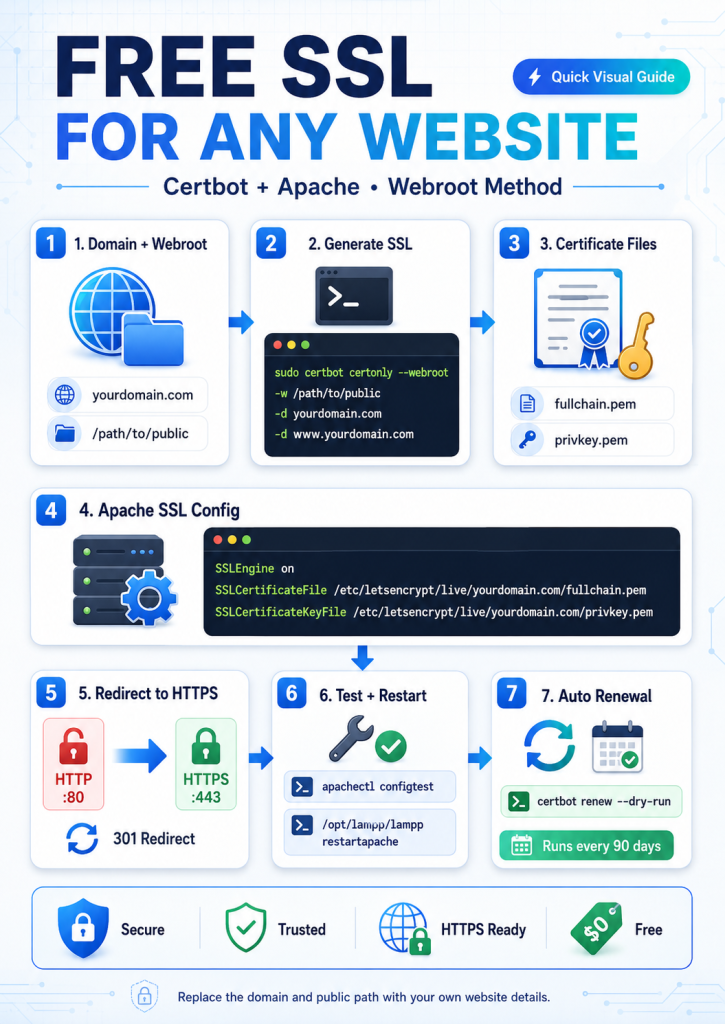
This tutorial explains how to generate and configure a free SSL certificate for any website using Let’s Encrypt Certbot with the webroot method.
You can use this same process for any domain by replacing the domain name and project path.
Example Domain Used in This Tutorial
In this example, we are using:
myeventsnow.jp
www.myeventsnow.jp
Project public path:
/opt/lampp/htdocs/myeventsnow.jp/public
Step 1: Confirm Website Public Directory
First, check your website public directory.
Example:
ls -la /opt/lampp/htdocs/myeventsnow.jp/public
Make sure this folder exists and your website files are inside it.
For Laravel projects, the correct webroot is usually:
/project-folder/public
Example:
/opt/lampp/htdocs/myeventsnow.jp/public
Step 2: Generate Free SSL Certificate Using Certbot
Run the following command:
sudo certbot certonly --webroot \
-w /opt/lampp/htdocs/myeventsnow.jp/public \
-d myeventsnow.jp \
-d www.myeventsnow.jp
Explanation of the Command
| Command Part | Meaning |
|---|---|
certbot certonly | Generates certificate only, without automatically changing Apache config |
--webroot | Uses the website folder to verify domain ownership |
-w | Website public directory path |
-d myeventsnow.jp | Main domain |
-d www.myeventsnow.jp | WWW version of domain |
Step 3: SSL Certificate Location
After successful generation, Certbot will show paths like this:
Certificate is saved at: /etc/letsencrypt/live/myeventsnow.jp/fullchain.pem
Key is saved at:         /etc/letsencrypt/live/myeventsnow.jp/privkey.pem
These two files are required in Apache SSL configuration.
Step 4: Create Apache SSL VirtualHost
Now create or update your Apache SSL configuration file.
Example SSL VirtualHost:
<VirtualHost *:443>
    ServerName myeventsnow.jp
    ServerAlias www.myeventsnow.jp

    DocumentRoot "/opt/lampp/htdocs/myeventsnow.jp/public"

    <Directory "/opt/lampp/htdocs/myeventsnow.jp/public">
        Options Indexes FollowSymLinks
        AllowOverride All
        Require all granted
    </Directory>

    SSLEngine on
    SSLCertificateFile "/etc/letsencrypt/live/myeventsnow.jp/fullchain.pem"
    SSLCertificateKeyFile "/etc/letsencrypt/live/myeventsnow.jp/privkey.pem"

    ErrorLog "/opt/lampp/logs/myeventsnow_ssl_error.log"
    CustomLog "/opt/lampp/logs/myeventsnow_ssl_access.log" combined
</VirtualHost>
Step 5: Important Correction in Log File Names
In your current config, log files are written as:
ErrorLog "/opt/lampp/logs/amaravatiorbit_ssl_error.log"
CustomLog "/opt/lampp/logs/amaravatiorbit_ssl_access.log" combined
For better clarity, change them to the current website name:
ErrorLog "/opt/lampp/logs/myeventsnow_ssl_error.log"
CustomLog "/opt/lampp/logs/myeventsnow_ssl_access.log" combined
This is not mandatory, but it is recommended so that logs are easy to identify.
Step 6: Optional HTTP to HTTPS Redirect
You should also create a port 80 VirtualHost to redirect HTTP traffic to HTTPS.
<VirtualHost *:80>
    ServerName myeventsnow.jp
    ServerAlias www.myeventsnow.jp

    DocumentRoot "/opt/lampp/htdocs/myeventsnow.jp/public"

    <Directory "/opt/lampp/htdocs/myeventsnow.jp/public">
        Options Indexes FollowSymLinks
        AllowOverride All
        Require all granted
    </Directory>

    RewriteEngine On
    RewriteCond %{HTTPS} off
    RewriteRule ^ https://%{HTTP_HOST}%{REQUEST_URI} [L,R=301]
</VirtualHost>
This will redirect:
http://myeventsnow.jp
to:
https://myeventsnow.jp
Step 7: Test Apache Configuration
Before restarting Apache, test the configuration.
For normal Apache:
sudo apachectl configtest
For XAMPP/LAMPP Apache:
sudo /opt/lampp/bin/apachectl configtest
Expected output:
Syntax OK
Step 8: Restart Apache
For XAMPP/LAMPP:
sudo /opt/lampp/lampp restart
Or only restart Apache:
sudo /opt/lampp/lampp restartapache
For system Apache:
sudo systemctl restart apache2
Step 9: Check Website
Now open your website:
https://myeventsnow.jp
Also check:
https://www.myeventsnow.jp
The website should open with SSL successfully.
Step 10: Check Certificate Renewal
Let’s Encrypt SSL certificates are usually valid for around 90 days, so renewal should be configured.
Test renewal with:
sudo certbot renew --dry-run
If the test is successful, automatic renewal should work.
You can also manually renew certificates using:
sudo certbot renew
After renewal, restart Apache:
sudo /opt/lampp/lampp restartapache
Generic Command for Any Website
Use this format for any domain:
sudo certbot certonly --webroot \
-w /path/to/your/project/public \
-d yourdomain.com \
-d www.yourdomain.com
Example:
sudo certbot certonly --webroot \
-w /opt/lampp/htdocs/example.com/public \
-d example.com \
-d www.example.com
Generic Apache SSL VirtualHost for Any Website
<VirtualHost *:443>
    ServerName yourdomain.com
    ServerAlias www.yourdomain.com

    DocumentRoot "/path/to/your/project/public"

    <Directory "/path/to/your/project/public">
        Options Indexes FollowSymLinks
        AllowOverride All
        Require all granted
    </Directory>

    SSLEngine on
    SSLCertificateFile "/etc/letsencrypt/live/yourdomain.com/fullchain.pem"
    SSLCertificateKeyFile "/etc/letsencrypt/live/yourdomain.com/privkey.pem"

    ErrorLog "/opt/lampp/logs/yourdomain_ssl_error.log"
    CustomLog "/opt/lampp/logs/yourdomain_ssl_access.log" combined
</VirtualHost>
Common Errors and Fixes
1. Certbot Shows 500 Error
If Certbot gives a 500 error during verification, check:
tail -f /opt/lampp/logs/error_log
Also check your Laravel log:
tail -f /opt/lampp/htdocs/myeventsnow.jp/storage/logs/laravel.log
Possible reasons:
- Wrong
DocumentRoot - Permission issue
- Laravel error
.htaccessissue- Website returning 500 on
/.well-known/acme-challenge/
2. Certificate Path Not Found
Check if certificate files exist:
ls -la /etc/letsencrypt/live/myeventsnow.jp/
If files are missing, Certbot generation was not successful.
3. Apache Not Starting After SSL Config
Run:
sudo /opt/lampp/bin/apachectl configtest
If any syntax error appears, fix the Apache config file and restart Apache again.
Final Notes
This method is useful when you want full control over Apache SSL configuration. The certonly --webroot method generates the SSL certificate, and then you manually add the certificate path in the Apache VirtualHost.
For any new website, you only need to change:
Domain name
Project public path
SSL certificate path
Log file names
Example values to replace:
yourdomain.com
/path/to/your/project/public
/etc/letsencrypt/live/yourdomain.com/fullchain.pem
/etc/letsencrypt/live/yourdomain.com/privkey.pem
