Limited Time Offer!
For Less Than the Cost of a Starbucks Coffee, Access All DevOpsSchool Videos on YouTube Unlimitedly.
Master DevOps, SRE, DevSecOps Skills!

1. Understand the server flow first
When a user opens:
https://urologyhospitals.com/
the request flow is:
- Domain DNS points to your server IP
- Apache receives request on port
80or443 - Apache checks enabled VirtualHosts
- Apache matches
ServerNameorServerAlias - Apache uses that VirtualHost’s
DocumentRoot - Apache looks for
index.phporindex.html - PHP executes the file
- Browser gets the response
If no proper VirtualHost is loaded, Apache falls back to the default root:
/var/www/html
That is why Ubuntu default page was opening.
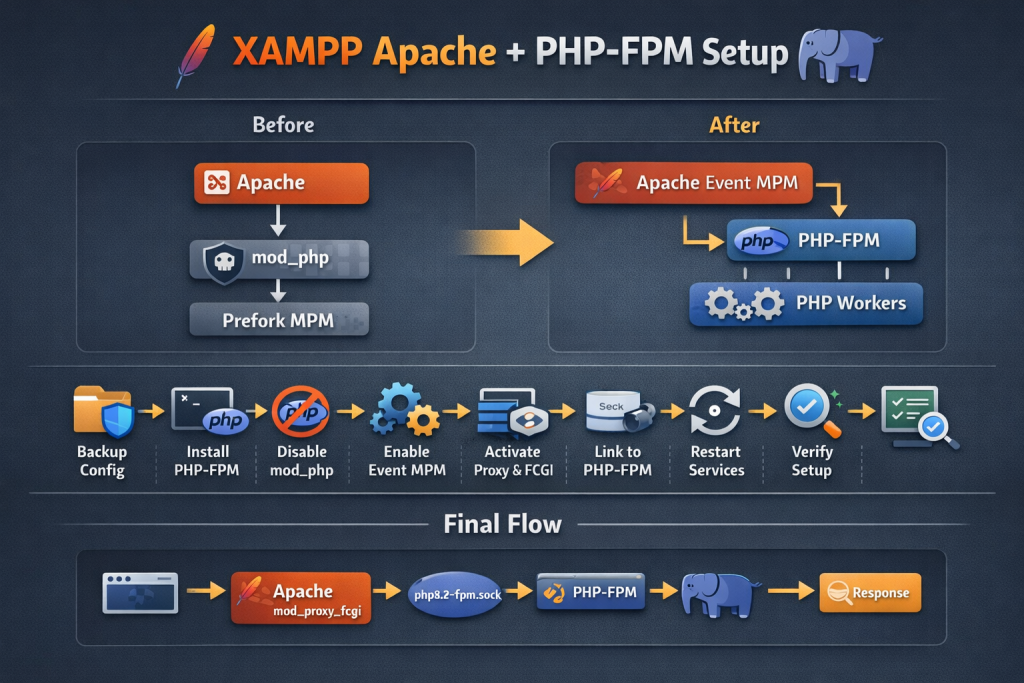
2. Verify Apache is using Event MPM
Run:
apachectl -V
You already confirmed:
Server MPM: event
That means Apache Event MPM is active.
To verify loaded MPM module:
apachectl -M | grep mpm
Expected:
mpm_event_module
3. Tune Apache Event MPM
Open the file:
sudo nano /etc/apache2/mods-available/mpm_event.conf
Your earlier file was:
StartServers            2
MinSpareThreads         25
MaxSpareThreads         75
ThreadLimit             64
ThreadsPerChild         25
MaxRequestWorkers       150
MaxConnectionsPerChild  0
A stronger production-style version is:
<IfModule mpm_event_module>
    StartServers             2
    ServerLimit              16
    ThreadLimit              64
    ThreadsPerChild          25
    MaxRequestWorkers        400
    MinSpareThreads          50
    MaxSpareThreads          150
    MaxConnectionsPerChild   10000
</IfModule>
Meaning of these values
StartServers 2→ start with 2 Apache child processesServerLimit 16→ Apache can create up to 16 child processesThreadsPerChild 25→ each process has 25 worker threadsMaxRequestWorkers 400→ max concurrent workersMinSpareThreads 50→ keep at least 50 idle threads readyMaxSpareThreads 150→ do not keep too many idle threadsMaxConnectionsPerChild 10000→ recycle child process after 10000 connections
Important formula
ServerLimit × ThreadsPerChild = MaxRequestWorkers
16 × 25 = 400
So this is valid.
4. Test Apache config after MPM change
Run:
sudo apachectl configtest
Expected:
Syntax OK
You saw this already. That means config is correct.
Then restart Apache:
sudo systemctl restart apache2
5. Fix the global ServerName warning
You got this warning:
AH00558: apache2: Could not reliably determine the server's fully qualified domain name
This is only a warning, not a failure.
To remove it:
sudo nano /etc/apache2/apache2.conf
Add at the bottom:
ServerName localhost
Or use your main domain if preferred.
Then:
sudo apachectl configtest
sudo systemctl restart apache2
6. Check whether VirtualHosts are loaded
Run:
sudo apache2ctl -S
Your output showed only:
Main DocumentRoot: "/var/www/html"
and no domain VirtualHosts.
That means Apache had no active site for your domain, so it was showing the Ubuntu default page.
7. Create your website folder
Create a clean project folder:
sudo mkdir -p /var/www/urologyhospitals.com/public
Set ownership:
sudo chown -R www-data:www-data /var/www/urologyhospitals.com
Set permissions:
sudo find /var/www/urologyhospitals.com -type d -exec chmod 755 {} \;
sudo find /var/www/urologyhospitals.com -type f -exec chmod 644 {} \;
8. Create a test index.php
Create file:
sudo nano /var/www/urologyhospitals.com/public/index.php
Paste this:
<?php
declare(strict_types=1);
?>
<!DOCTYPE html>
<html lang="en">
<head>
    <meta charset="UTF-8">
    <meta name="viewport" content="width=device-width, initial-scale=1.0">
    <title>urologyhospitals.com</title>
</head>
<body>
    <h1>urologyhospitals.com is working</h1>
    <p>Apache is serving this domain from its own VirtualHost.</p>
    <p><strong>Server Name:</strong> <?= htmlspecialchars($_SERVER['SERVER_NAME'] ?? '') ?></p>
    <p><strong>Document Root:</strong> <?= htmlspecialchars($_SERVER['DOCUMENT_ROOT'] ?? '') ?></p>
    <p><strong>Request URI:</strong> <?= htmlspecialchars($_SERVER['REQUEST_URI'] ?? '') ?></p>
</body>
</html>
This helps confirm:
- PHP is working
- correct domain is matched
- correct folder is used
9. Create HTTP VirtualHost
Create file:
sudo nano /etc/apache2/sites-available/urologyhospitals.com.conf
Paste:
<VirtualHost *:80>
    ServerName urologyhospitals.com
    ServerAlias www.urologyhospitals.com

    DocumentRoot /var/www/urologyhospitals.com/public
    DirectoryIndex index.php index.html

    <Directory /var/www/urologyhospitals.com/public>
        Options Indexes FollowSymLinks
        AllowOverride All
        Require all granted
    </Directory>

    ErrorLog ${APACHE_LOG_DIR}/urologyhospitals_error.log
    CustomLog ${APACHE_LOG_DIR}/urologyhospitals_access.log combined
</VirtualHost>
What this does
- listens on port 80
- matches
urologyhospitals.com - serves files from
/var/www/urologyhospitals.com/public - allows
.htaccess - uses
index.phpas default file
10. Enable Apache modules
Enable rewrite:
sudo a2enmod rewrite
Enable SSL if you will use HTTPS:
sudo a2enmod ssl
11. Enable the new site
Run:
sudo a2ensite urologyhospitals.com.conf
This creates a symlink in:
/etc/apache2/sites-enabled/
which makes Apache actually load the site.
12. Disable Ubuntu default site
Disable the default site that serves /var/www/html:
sudo a2dissite 000-default.conf
If SSL default site is enabled, disable it too:
sudo a2dissite default-ssl.conf
If it says not enabled, that is okay.
13. Test config and restart
Run:
sudo apachectl configtest
Then restart:
sudo systemctl restart apache2
14. Verify VirtualHost is active
Run:
sudo apache2ctl -S
Now you should see the domain listed.
If HTTP site is active, you should now be able to open:
http://urologyhospitals.com/
and see your custom index.php.
15. Set up HTTPS VirtualHost
First make sure certificate files exist:
ls -l /etc/letsencrypt/live/urologyhospitals.com/
You should see:
fullchain.pemprivkey.pem
If they exist, create HTTPS config:
sudo nano /etc/apache2/sites-available/urologyhospitals.com-ssl.conf
Paste:
<IfModule mod_ssl.c>
<VirtualHost *:443>
    ServerName urologyhospitals.com
    ServerAlias www.urologyhospitals.com

    DocumentRoot /var/www/urologyhospitals.com/public
    DirectoryIndex index.php index.html

    <Directory /var/www/urologyhospitals.com/public>
        Options Indexes FollowSymLinks
        AllowOverride All
        Require all granted
    </Directory>

    ErrorLog ${APACHE_LOG_DIR}/urologyhospitals_ssl_error.log
    CustomLog ${APACHE_LOG_DIR}/urologyhospitals_ssl_access.log combined

    SSLEngine on
    SSLCertificateFile /etc/letsencrypt/live/urologyhospitals.com/fullchain.pem
    SSLCertificateKeyFile /etc/letsencrypt/live/urologyhospitals.com/privkey.pem
    Include /etc/letsencrypt/options-ssl-apache.conf
</VirtualHost>
</IfModule>
Enable it:
sudo a2ensite urologyhospitals.com-ssl.conf
Test config:
sudo apachectl configtest
Restart:
sudo systemctl restart apache2
Now:
https://urologyhospitals.com/
should load your custom index.php.
16. Optional HTTP to HTTPS redirect
If you want every HTTP request to go to HTTPS, edit:
sudo nano /etc/apache2/sites-available/urologyhospitals.com.conf
Use this version:
<VirtualHost *:80>
    ServerName urologyhospitals.com
    ServerAlias www.urologyhospitals.com

    RewriteEngine On
    RewriteCond %{SERVER_NAME} =urologyhospitals.com [OR]
    RewriteCond %{SERVER_NAME} =www.urologyhospitals.com
    RewriteRule ^ https://%{SERVER_NAME}%{REQUEST_URI} [END,NE,R=permanent]

    ErrorLog ${APACHE_LOG_DIR}/urologyhospitals_error.log
    CustomLog ${APACHE_LOG_DIR}/urologyhospitals_access.log combined
</VirtualHost>
Then:
sudo apachectl configtest
sudo systemctl restart apache2
17. Why Ubuntu page appeared before
Because Apache had:
Main DocumentRoot: "/var/www/html"
and no domain VirtualHost was active.
So requests were being served from:
/var/www/html
where Ubuntu default Apache page exists.
Once you create and enable your own site, Apache stops using the default site for that domain.
18. Useful commands for troubleshooting
Show loaded virtual hosts
sudo apache2ctl -S
Test Apache config
sudo apachectl configtest
Restart Apache
sudo systemctl restart apache2
Check Apache status
sudo systemctl status apache2 --no-pager
Check enabled sites
ls -l /etc/apache2/sites-enabled/
Check logs
sudo tail -f /var/log/apache2/error.log
Domain-specific error log:
sudo tail -f /var/log/apache2/urologyhospitals_error.log
SSL error log:
sudo tail -f /var/log/apache2/urologyhospitals_ssl_error.log
19. Full command sequence in one place
Step A: Create folder and file
sudo mkdir -p /var/www/urologyhospitals.com/public
sudo chown -R www-data:www-data /var/www/urologyhospitals.com
sudo find /var/www/urologyhospitals.com -type d -exec chmod 755 {} \;
sudo find /var/www/urologyhospitals.com -type f -exec chmod 644 {} \;
sudo nano /var/www/urologyhospitals.com/public/index.php
Step B: Create HTTP site
sudo nano /etc/apache2/sites-available/urologyhospitals.com.conf
Step C: Enable modules and site
sudo a2enmod rewrite
sudo a2enmod ssl
sudo a2ensite urologyhospitals.com.conf
sudo a2dissite 000-default.conf
sudo a2dissite default-ssl.conf
Step D: Test and restart
sudo apachectl configtest
sudo systemctl restart apache2
sudo apache2ctl -S
Step E: Create HTTPS site
sudo nano /etc/apache2/sites-available/urologyhospitals.com-ssl.conf
sudo a2ensite urologyhospitals.com-ssl.conf
sudo apachectl configtest
sudo systemctl restart apache2
sudo apache2ctl -S
20. Final recommended setup structure
Your final structure should look like this:
/var/www/urologyhospitals.com/
└── public/
    └── index.php

/etc/apache2/sites-available/
├── urologyhospitals.com.conf
└── urologyhospitals.com-ssl.conf

/etc/apache2/sites-enabled/
├── urologyhospitals.com.conf -> ../sites-available/urologyhospitals.com.conf
└── urologyhospitals.com-ssl.conf -> ../sites-available/urologyhospitals.com-ssl.conf
21. Important production note
Later, when you host Laravel or another PHP app, DocumentRoot should point to the app’s public folder, not the project root.
Example:
DocumentRoot /var/www/project-name/public
That is the correct approach for Laravel too.
22. Best next step
Run this sequence first:
sudo mkdir -p /var/www/urologyhospitals.com/public
sudo nano /var/www/urologyhospitals.com/public/index.php
sudo nano /etc/apache2/sites-available/urologyhospitals.com.conf
sudo a2enmod rewrite
sudo a2ensite urologyhospitals.com.conf
sudo a2dissite 000-default.conf
sudo apachectl configtest
sudo systemctl restart apache2
sudo apache2ctl -S
Then test:
http://urologyhospitals.com/
After that, add the SSL site.