Skip to content
Menu
DevSecOps Now!!!
  • About
  • Certifications
  • Contact
  • Courses
  • DevSecOps Consulting
  • DevSecOps Tools
  • Training
  • Tutorials
DevSecOps Now!!!

How to Import Files from Your Laptop into WSL (Windows Subsystem for Linux)

Posted on November 8, 2025

Limited Time Offer!

For Less Than the Cost of a Starbucks Coffee, Access All DevOpsSchool Videos on YouTube Unlimitedly.
Master DevOps, SRE, DevSecOps Skills!
Enroll Now

Working with WSL is powerful because you can use Linux tools directly on your Windows machine. One of the most common needs is moving or copying files from the Windows side into the WSL Linux environment.
This tutorial covers every method, answers all common questions, and explains why certain approaches are better.


1. Understanding How WSL Sees Windows Files

When WSL is installed, Windows automatically exposes its drives inside Linux.
This means:
C: drive appears as /mnt/c
D: drive appears as /mnt/d

For example:

  • A file on your Desktop:
    Windows: C:\Users\YourName\Desktop\sample.txt
    WSL: /mnt/c/Users/YourName/Desktop/sample.txt

This is the foundation of everything.
Once you understand this, file transfer becomes very easy.


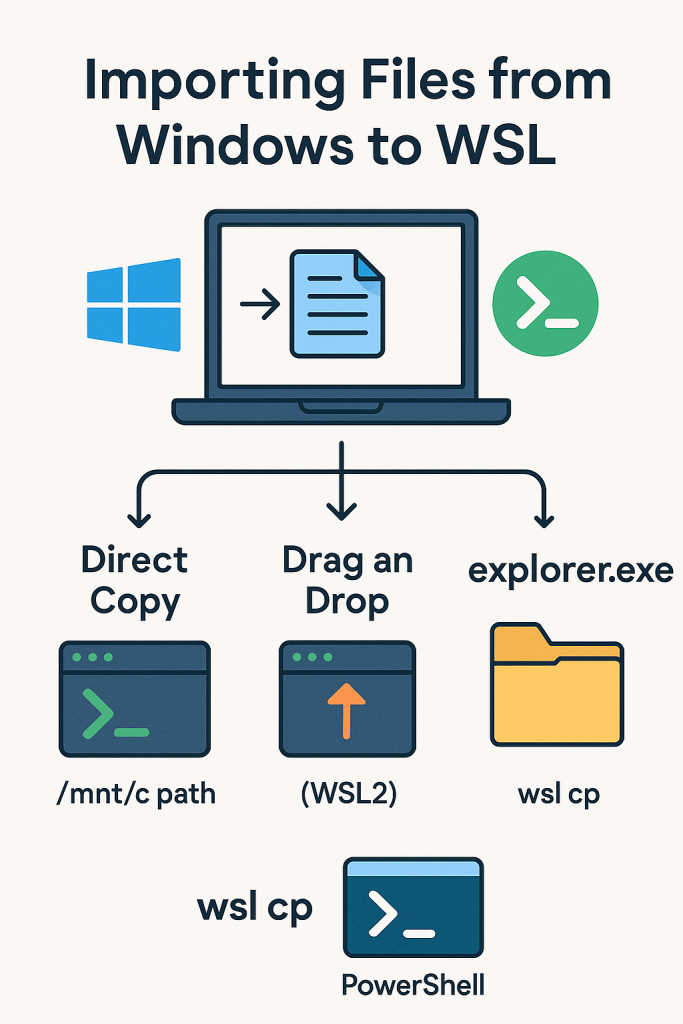
2. Method 1: Direct Copy Using Linux Commands (Recommended)

This is the most stable and universal method.

Step-by-step:

  1. Identify your Windows file path.
    Example: C:\Users\Rajesh\Desktop\data.csv
  2. Convert it to WSL path:
    /mnt/c/Users/Rajesh/Desktop/data.csv
  3. Copy it into WSL home directory:
cp /mnt/c/Users/Rajesh/Desktop/data.csv ~/

Now data.csv is inside Linux at:

/home/<your-wsl-username>/data.csv

Why this method is best:

  • Works on WSL1 and WSL2
  • No GUI required
  • Fast and reliable
  • Supports large files

3. Method 2: Drag and Drop into Terminal (WSL2 on Windows 11 Only)

If you are using Windows 11 with WSLg (GUI support):

  1. Open your WSL terminal.
  2. Drag a file from Windows File Explorer.
  3. Drop it into your WSL shell window.

WSL copies the file into the current directory.

This is extremely easy, but only available in the latest WSL version.


4. Method 3: Using explorer.exe from WSL

WSL can open a Windows File Explorer window directly inside your Linux location.

Example:

explorer.exe .

This opens the current WSL folder in Windows Explorer.

How to use this to import files:

  1. Go to your desired folder in WSL terminal.
  2. Run:
explorer.exe .
  1. A Windows folder opens.
  2. Copy/paste files into it normally.

All pasted files instantly appear in WSL.

This is perfect for users who prefer GUI instead of commands.


5. Method 4: Copy via PowerShell or CMD

If you are already in PowerShell or CMD, you can copy files into WSL without opening the terminal.

Examples:

Copy from Windows to WSL home:

wsl cp "/mnt/c/Users/Rajesh/Desktop/info.txt" "/home/rajesh/"

Or copy from WSL to Windows:

wsl cp "/home/rajesh/test.jpg" "/mnt/c/Users/Rajesh/Desktop/"

This is useful during automation or scripting.


6. Method 5: Shared Location (Both Sides Can Access)

Because WSL can access anything under /mnt/c, one easy method is:

  1. Create a folder in Windows:
    Example: C:\wsl_shared
  2. Inside WSL, this folder is visible at:
    /mnt/c/wsl_shared
  3. You can drop files from Windows into this folder and then use them in WSL.

This is ideal if you move files frequently.


7. Frequently Asked Questions (FAQ)

Q1: Do I need to install anything extra to transfer files?

No. WSL automatically mounts Windows drives at /mnt/c, /mnt/d, and so on.


Q2: Can WSL access the entire Windows file system?

Yes. Everything on your Windows drives is accessible from WSL.


Q3: Will copying files this way cause data corruption?

No. Copying files between Windows and WSL is safe and fully supported.


Q4: Can I open Windows folders directly from WSL?

Yes. Use:

explorer.exe .

Q5: Can I edit Linux files using Windows apps?

Yes, but be careful editing files inside WSLโ€™s Linux root.
For best safety, edit files stored inside /mnt/c/....


Q6: Can I move a whole directory from Windows to WSL?

Yes:

cp -r /mnt/c/Users/Rajesh/Desktop/myfolder ~/

Q7: Can I do this the opposite way (WSL โ†’ Windows)?

Yes:

cp ~/output.log /mnt/c/Users/Rajesh/Desktop/

Q8: Is drag & drop supported?

Only on WSL2 with Windows 11 and WSLg enabled.


Q9: What if my username has spaces?

Use quotes:

cp "/mnt/c/Users/Rajesh Kumar/Desktop/file.txt" ~/

8. Best Practices & Recommendations

  1. Use /mnt/c/... paths for quick access.
  2. Use explorer.exe . when you want simplicity.
  3. Avoid storing project files under WSL root (/home) if you want to edit using Windows apps.
  4. Prefer Method 1 for scripting and repeatable tasks.
  5. Prefer Method 3 if you prefer GUI.

9. Summary Table (Quick Comparison)

MethodBest ForProsNotes
Direct copy via /mnt/cEveryoneFast, stableWorks on all WSL versions
Drag-and-dropWindows 11Very easyRequires WSLg
explorer.exe .GUI usersSeamless copy/pasteBest for large directory transfers
PowerShell wsl cpAutomationScriptableRequires correct paths
Shared folderFrequent transfersPermanent workspaceGreat for mixed Windows/Linux workflows

Post Views: 1,558
  • Direct Copy Using Linux Commands
  • How to Import Files from Your Laptop into WSL
  • How WSL Sees Windows Files
  • Import Files from Your Laptop into WSL
  • Windows Subsystem for Linux
  • WSL
Subscribe
Login
Notify of
guest
guest
0 Comments
Oldest
Newest Most Voted
Inline Feedbacks
View all comments
  • Mautic and PHP 8.3 Compatibility Guide (2026)
  • Certified AIOps Engineer: The Complete Career Path and Certification Guide
  • How to Rename Apache Virtual Host Files Safely (Step-by-Step Guide for Linux)
  • AIOps Foundation Certification: Everything You Need to Know to Get Certified
  • DevOps to Certified Site Reliability Professional: A Senior Mentorโ€™s Guide
  • Certified Site Reliability Manager Training, Preparation, and Career Mapping
  • Certified Site Reliability Architect: The Complete Career Guide
  • What Is a VPN? A Complete Beginner-to-Advanced Tutorial
  • How to Install, Secure, and Tune MySQL 8.4 on Ubuntu 24.04 for Apache Event MPM and PHP-FPM
  • Complete Guide to Certified Site Reliability Engineer Career
  • Certified DevSecOps Professional Step by Step
  • Certified DevSecOps Manager: Complete Career Guide
  • Certified DevSecOps Engineer: Skills, Career Path and Certification Guide
  • Step-by-Step: Become a Certified DevSecOps Architect
  • Tuning PHP 8.3 for Apache Event MPM and PHP-FPM on Ubuntu: A Complete Step-by-Step Production Guide
  • Complete Step-by-Step Guide to Configure Apache Event MPM, Create index.php, Set Up VirtualHost, and Fix Ubuntu Default Page
  • Convert XAMPP Apache to Event MPM + System PHP-FPM
  • The Gateway to System Observability Engineering (MOE)
  • How to Finetune Apache and Prove It Works: A Real-World Guide to Testing Performance, Concurrency, HTTP/2, Memory, CPU, and Security
  • Building a High-Performance Apache Event MPM + PHP-FPM + MariaDB Stack (Advanced Server Optimization Guide)
  • Master Infrastructure as Code: The Complete Hashicorp Terraform Associate Guide
  • Building a High-Performance Apache Server with Event MPM + PHP-FPM (Step-by-Step Guide)
  • Is XAMPP Safer for Production Than Using Apache and PHP as Root? 2026 Practical Guide
  • Unlock Cloud Security Expertise with Certified Kubernetes Security Specialist (CKS)
  • How to Fix wpDiscuz Not Replacing Default WordPress Comments in Block Themes
  • Complete Guide to Certified Kubernetes Application Developer Certification
  • Overview of Certified Kubernetes Administrator (CKA) Certification
  • How to Install and Configure XAMPP on Ubuntu 24 Server (Latest Version โ€“ 2026 Complete Guide)
  • Mastering the Google Cloud Professional DevOps Engineer
  • Mastering Azure Cloud Security: The AZ-500 Path

Recent Comments

  1. digital banking on Complete Tutorial: Setting Up Laravel Telescope Correctly (Windows + XAMPP + Custom Domain)
  2. SAHIL DHINGRA on How to Uninstall Xampp from your machine when it is not visible in Control panel programs & Feature ?
  3. Abhishek on MySQL: List of Comprehensive List of approach to secure MySQL servers.
  4. Kristina on Best practices to followed in .httacess to avoid DDOS attack?
  5. Roshan Jha on Git all Commands

Archives

  • April 2026
  • March 2026
  • February 2026
  • January 2026
  • December 2025
  • November 2025
  • October 2025
  • September 2025
  • August 2025
  • July 2025
  • June 2025
  • May 2025
  • April 2025
  • March 2025
  • February 2025
  • January 2025
  • December 2024
  • November 2024
  • October 2024
  • September 2024
  • August 2024
  • July 2024
  • June 2024
  • May 2024
  • April 2024
  • March 2024
  • February 2024
  • January 2024
  • December 2023
  • November 2023
  • October 2023
  • September 2023
  • August 2023
  • July 2023
  • May 2023
  • April 2023
  • March 2023
  • February 2023
  • January 2023
  • December 2022

Categories

  • Ai
  • AI Blogging
  • AiOps
  • ajax
  • Android Studio
  • Antimalware
  • Antivirus
  • Apache
  • Api
  • API Security
  • Api Testing
  • APK
  • Aws
  • Bike Rental Services
  • ChatGPT
  • Code Linting
  • Composer
  • cPanel
  • Cyber Threat Intelligence
  • Cybersecurity
  • Data Loss Prevention
  • Database
  • dataops
  • Deception Technology
  • DeepSeek
  • Devops
  • DevSecOps
  • DevTools
  • Digital Asset Management
  • Digital Certificates
  • Docker
  • Drupal
  • emulator
  • Encryption Tools
  • Endpoint Security Tools
  • Error
  • facebook
  • Firewalls
  • Flutter
  • git
  • GITHUB
  • Google Antigravity
  • Google play console
  • Google reCAPTCHA
  • Gradle
  • Guest posting
  • health and fitness
  • IDE
  • Identity and Access Management
  • Incident Response
  • Instagram
  • Intrusion Detection and Prevention Systems
  • jobs
  • Joomla
  • Keycloak
  • Laravel
  • Law News
  • Lawyer Discussion
  • Legal Advice
  • Linkedin
  • Linkedin Api
  • Linux
  • Livewire
  • Mautic
  • Medical Tourism
  • MlOps
  • MobaXterm
  • Mobile Device Management
  • Multi-Factor Authentication
  • MySql
  • Network Traffic Analysis tools
  • Paytm
  • Penetration Testing
  • php
  • PHPMyAdmin
  • Pinterest Api
  • Quora
  • SAST
  • SecOps
  • Secure File Transfer Protocol
  • Security Analytics Tools
  • Security Auditing Tools
  • Security Information and Event Management
  • Seo
  • Server Management Tools
  • Single Sign-On
  • Site Reliability Engineering
  • soft 404
  • software
  • SuiteCRM
  • SysOps
  • Threat Model
  • Twitter
  • Twitter Api
  • ubuntu
  • Uncategorized
  • Virtual Host
  • Virtual Private Networks
  • VPNs
  • Vulnerability Assessment Tools
  • Web Application Firewalls
  • Windows Processor
  • Wordpress
  • WSL (Windows Subsystem for Linux)
  • X.com
  • Xampp
  • Youtube
©2026 DevSecOps Now!!! | WordPress Theme: EcoCoded
wpDiscuz