Limited Time Offer!
For Less Than the Cost of a Starbucks Coffee, Access All DevOpsSchool Videos on YouTube Unlimitedly.
Master DevOps, SRE, DevSecOps Skills!
Introduction
Drupal is a powerful open-source content management system (CMS) used for building dynamic websites and web applications. Installing it locally on your Windows machine lets you develop, test, and experiment in a safe environment.
System Requirements
- Windows 10/11 (or compatible)
- Minimum 4 GB RAM (8 GB+ recommended)
- Internet connection for downloading files
- No prior Linux or coding experience required for XAMPP method
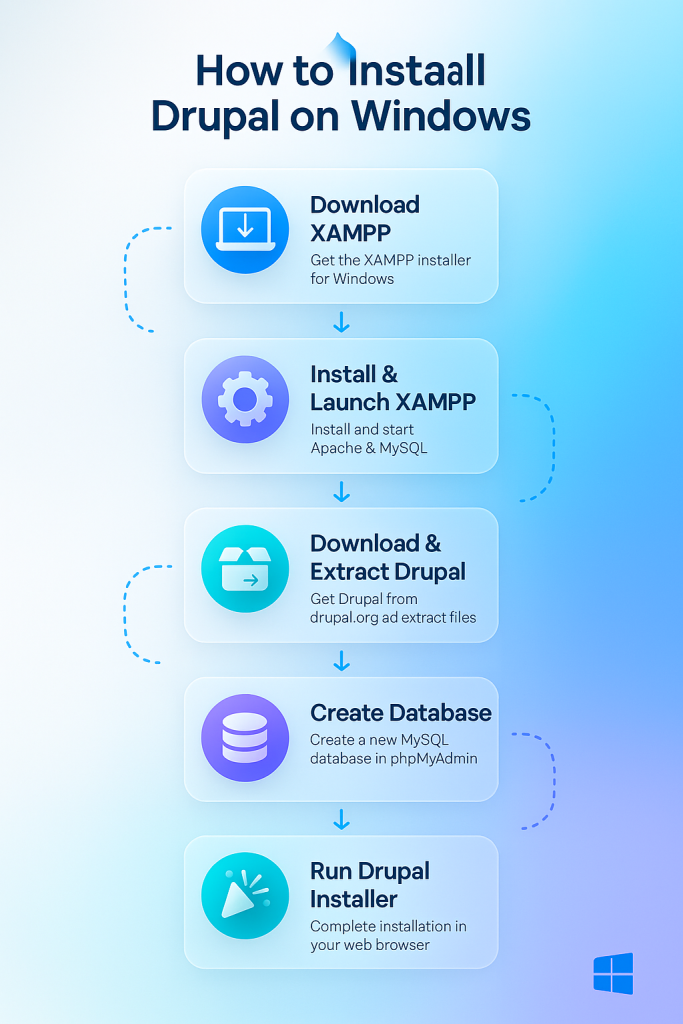
Step 1: Install XAMPP
XAMPP provides a bundled package of Apache (web server), MySQL/MariaDB (database), and PHP—all required to run Drupal.
1. Download XAMPP
- Go to https://www.apachefriends.org/index.html
- Click Download for the latest Windows version.
2. Install XAMPP
- Run the installer you downloaded.
- During installation, leave the default components selected (Apache, MySQL, PHP at minimum).
- Install to the suggested folder (e.g.,
C:\xampp).
3. Launch XAMPP
- Find XAMPP Control Panel in your Start Menu and open it.
- Click Start next to Apache and MySQL.
Both should show a green background.
Step 2: Download and Prepare Drupal
1. Download Drupal
- Visit https://www.drupal.org/download
- Download the latest recommended release, typically named like
drupal-10.x.x.zip.
2. Extract Drupal
- Right-click the ZIP file and choose Extract All…
- You’ll get a folder, e.g.,
drupal-10.x.x.
Tip: Rename it to something simple, likemydrupal.
Step 3: Move Drupal to XAMPP’s Web Directory
1. Locate the htdocs Folder
- Navigate to
C:\xampp\htdocsin File Explorer.
2. Copy Drupal Files
- Copy your extracted/renamed Drupal folder (
mydrupal) intohtdocs. - Your path will look like:
C:\xampp\htdocs\mydrupal
Step 4: Create a MySQL Database for Drupal
1. Open phpMyAdmin
- In your browser, go to http://localhost/phpmyadmin
2. Create a New Database
- Click Databases in the top menu.
- Enter a database name (e.g.,
drupaldb) - Click Create
- You don’t need to create tables—Drupal will do this during installation.
Step 5: Install Drupal via the Web Installer
1. Start the Drupal Installer
- Open your browser and go to: http://localhost/mydrupal
2. Select Language
- Choose your language (e.g., English) and continue.
3. Choose Installation Profile
- Select Standard (recommended for most users).
4. Database Configuration
- Database type: MySQL/MariaDB
- Database name:
drupaldb(the name you created above) - Database username:
root - Database password: (leave blank; XAMPP uses no password for root by default)
- Leave Advanced options as they are, unless you know you need to change them.
5. Install and Configure
- Drupal will set up its database and files (this takes a few minutes).
- Fill out Site Information: site name, email address, admin username/password.
- Save your admin credentials!
Step 6: Explore Your New Drupal Site
- Once installation is complete, you’ll be redirected to your new site’s home page.
- Log in with your admin credentials at http://localhost/mydrupal/user/login
- Start building pages, adding content, installing themes/modules, and exploring Drupal’s features.
Bonus: Drupal Installation Using Composer (Recommended for Advanced/Professional Use)
Why Composer?
Using Composer is the modern way to manage Drupal projects. It handles core, modules, themes, and dependencies in a single, upgradeable workflow.
1. Install Composer
- Download and install Composer from https://getcomposer.org/
2. Use Composer to Create a New Drupal Project
Open Command Prompt and run:
cd C:\xampp\htdocs
composer create-project drupal/recommended-project mydrupal
- This will create a new Drupal site in
C:\xampp\htdocs\mydrupal
3. Continue from Step 4 above (create database, then install via web browser at http://localhost/mydrupal/web)
Troubleshooting Common Issues
- Port Errors: If Apache won’t start, something else may be using port 80 (Skype, IIS). Change Apache’s port in XAMPP config, or stop the other service.
- Blank Page/Error 500: Usually a missing PHP extension or corrupted file. Ensure XAMPP is up-to-date and all files are extracted correctly.
- Database Connection Errors: Double-check the database name, username, and password.
- Access Denied: Make sure the
mydrupal/sites/defaultfolder andsettings.phpfile are writable during installation. You may need to manually copydefault.settings.phptosettings.php.
FAQs
Q: Can I install multiple Drupal sites in XAMPP?
A: Yes! Just create new folders in htdocs and new databases for each site.
Q: How do I update Drupal?
A: With Composer, run composer update. With manual installs, download and replace files—see Drupal’s update guide.
Q: Is it safe to run Drupal on Windows?
A: Yes, for local development. For production, Linux servers are recommended.
Conclusion
You now have a fully functioning local Drupal site on Windows!
Use this environment to learn, develop, and experiment with Drupal’s powerful CMS capabilities