Limited Time Offer!
For Less Than the Cost of a Starbucks Coffee, Access All DevOpsSchool Videos on YouTube Unlimitedly.
Master DevOps, SRE, DevSecOps Skills!
What is Docker?
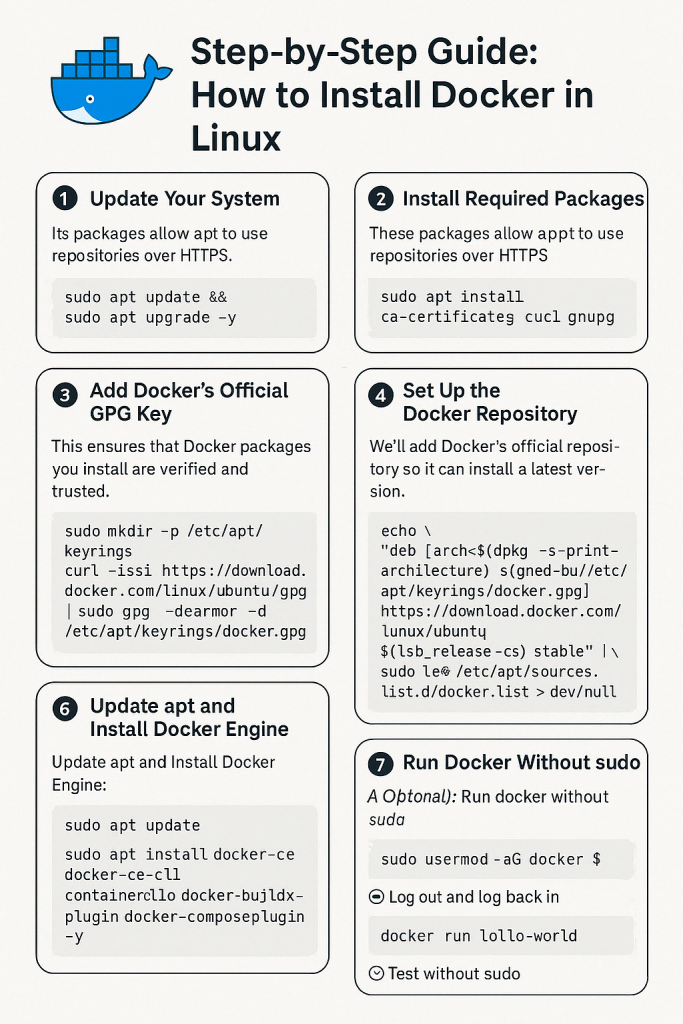
Docker is a platform used to develop, ship, and run applications inside containers. Containers are lightweight, portable, and self-sufficient environments that ensure your app runs smoothly on any system, regardless of differences in configuration.
If you’re a developer, sysadmin, or just curious, learning Docker is a huge step forward in modern DevOps and deployment workflows.
📌 Prerequisites
Before diving in, ensure the following:
- You are using a 64-bit Linux system.
- You have a terminal with
sudoaccess. - Your system is connected to the internet.
- Recommended: Ubuntu 20.04 LTS or later, or Debian 10+.
✅ Step 1: Update Your System
Why?
It’s important to update your local package list to ensure you’re working with the latest repositories and security patches.
sudo apt update && sudo apt upgrade -y
apt update: Updates the list of available packages.apt upgrade: Installs the newest versions of packages on your system.
✅ Step 2: Install Required Dependencies
Docker requires some dependencies to handle repositories and HTTPS.
sudo apt install ca-certificates curl gnupg lsb-release -y
ca-certificates: Ensures HTTPS connections are trusted.curl: Used to download files from the internet.gnupg: Required to add GPG keys for verifying packages.lsb-release: Provides info about your distribution, used in repo setup.
✅ Step 3: Add Docker’s Official GPG Key
Why?
This key is used to verify Docker packages and make sure they haven’t been tampered with.
sudo mkdir -p /etc/apt/keyrings
curl -fsSL https://download.docker.com/linux/ubuntu/gpg | \
  sudo gpg --dearmor -o /etc/apt/keyrings/docker.gpg
mkdir -p: Creates a directory if it doesn’t already exist.curl ... | gpg --dearmor: Downloads and converts the Docker GPG key.
✅ Step 4: Add the Docker Repository
We now add the Docker repository to our APT sources list so we can install Docker directly from Docker’s official servers.
echo \
  "deb [arch=$(dpkg --print-architecture) signed-by=/etc/apt/keyrings/docker.gpg] \
  https://download.docker.com/linux/ubuntu \
  $(lsb_release -cs) stable" | \
  sudo tee /etc/apt/sources.list.d/docker.list > /dev/null
dpkg --print-architecture: Returns your CPU architecture (e.g., amd64).lsb_release -cs: Returns your codename (e.g., focal, jammy).- This command sets up the Docker repository specific to your system version.
✅ Step 5: Update APT and Install Docker Engine
Now that Docker’s repo is set up, you can install Docker using the following commands:
sudo apt update
sudo apt install docker-ce docker-ce-cli containerd.io docker-buildx-plugin docker-compose-plugin -y
docker-ce: The core Docker engine.docker-ce-cli: Command-line tools to interact with Docker.containerd.io: A core container runtime.docker-compose-plugin: Allows you to usedocker composecommands (note the space, new syntax).docker-buildx-plugin: Used for building multi-platform images.
✅ Step 6: Verify That Docker Is Installed and Running
Check the Docker version:
sudo docker --version
Expected output:
Docker version 24.x.x, build xxxx
Run a test container:
sudo docker run hello-world
This command pulls a test image and runs a container from it. It verifies:
- Docker is installed correctly
- The Docker daemon is active
- The Docker engine can pull images from the internet
✅ Step 7: Use Docker Without sudo (Optional but Recommended)
By default, Docker needs sudo for security. You can allow your user to run Docker directly by adding them to the Docker group:
sudo usermod -aG docker $USER
usermod -aG: Adds your user to a group (here,docker).$USER: Refers to your current username.
Important: Log out and log back in after this step. Otherwise, changes won’t take effect.
Then test without sudo:
docker run hello-world
✅ Step 8: Enable Docker to Start on System Boot
If you want Docker to always start after a reboot (which is useful for servers), run:
sudo systemctl enable docker
- This ensures Docker starts every time your machine does.
🎯 Additional: Useful Docker Commands
| Command | Description |
|---|---|
docker ps | Lists running containers |
docker ps -a | Lists all containers (including stopped) |
docker images | Lists downloaded Docker images |
docker stop <container_id> | Stops a running container |
docker rm <container_id> | Deletes a container |
docker rmi <image_id> | Deletes a Docker image |
docker exec -it <container_id> bash | Access container terminal |
📌 Troubleshooting Tips
- If
docker run hello-worldfails, check:- Is the Docker daemon running?
sudo systemctl status docker - Any firewall blocking Docker?
- Try restarting:
sudo systemctl restart docker.
- Is the Docker daemon running?
