Skip to content
Menu
DevSecOps Now!!!
  • About
  • Certifications
  • Contact
  • Courses
  • DevSecOps Consulting
  • DevSecOps Tools
  • Training
  • Tutorials
DevSecOps Now!!!

How to change my OS from Ubuntu to Windows 10

Posted on January 7, 2025

Limited Time Offer!

For Less Than the Cost of a Starbucks Coffee, Access All DevOpsSchool Videos on YouTube Unlimitedly.
Master DevOps, SRE, DevSecOps Skills!
Enroll Now

How to Change Your Operating System from Ubuntu to Windows 10

Switching from Ubuntu to Windows 10 can seem like a big step, but with proper guidance, it’s a straightforward process. Whether you’re new to this or have done it before, this guide will walk you through every detail in a simple and humanized way.

Before You Begin

Changing your operating system will completely erase Ubuntu from your computer. So, it’s essential to prepare yourself before jumping into the process. Here’s what you need to do:

  1. Back Up Your Data:
    Take a moment to save your personal files—like photos, documents, or projects. You can copy them to an external hard drive, a USB flash drive, or upload them to cloud storage services like Google Drive or Dropbox. Remember, once the process starts, all existing data on your computer will be erased.
  2. Get a Windows 10 License Key:
    Windows 10 isn’t free. Make sure you have a valid license key ready. If you don’t, you can purchase it directly from Microsoft or other trusted retailers.
  3. Create a Windows 10 Bootable USB Drive:
    You’ll need another computer with internet access to create the bootable USB drive. If you already have a Windows installation USB, skip this step. Otherwise, follow these steps:
    • Go to the official Windows 10 Download Page.
    • Download the Media Creation Tool provided on the website.
    • Use this tool to create a bootable USB drive with the Windows 10 installation files. Make sure your USB drive has at least 8GB of free space.

Step 1: Booting into the Windows 10 Installer

Now that you’re ready, it’s time to start the installation process.

  1. Insert the Bootable USB Drive:
    Plug the USB drive you created into your Ubuntu computer.
  2. Restart Your Computer:
    As it restarts, you’ll need to access the BIOS/UEFI settings to make the USB drive the primary boot device.
  3. Access BIOS/UEFI:
    • Look out for a message on the screen that says something like “Press [key] to enter setup” or “Boot options.” The key is usually F2, F12, DEL, or ESC—it depends on your computer manufacturer.
    • Navigate through the BIOS/UEFI menu using the arrow keys.
    • Find the Boot Order or Boot Priority settings and move the USB drive to the top of the list.
    • Save your changes and exit (usually by pressing F10).
  4. Boot from USB:
    Your computer should now boot directly from the USB drive, launching the Windows 10 installation setup.

Step 2: Installing Windows 10
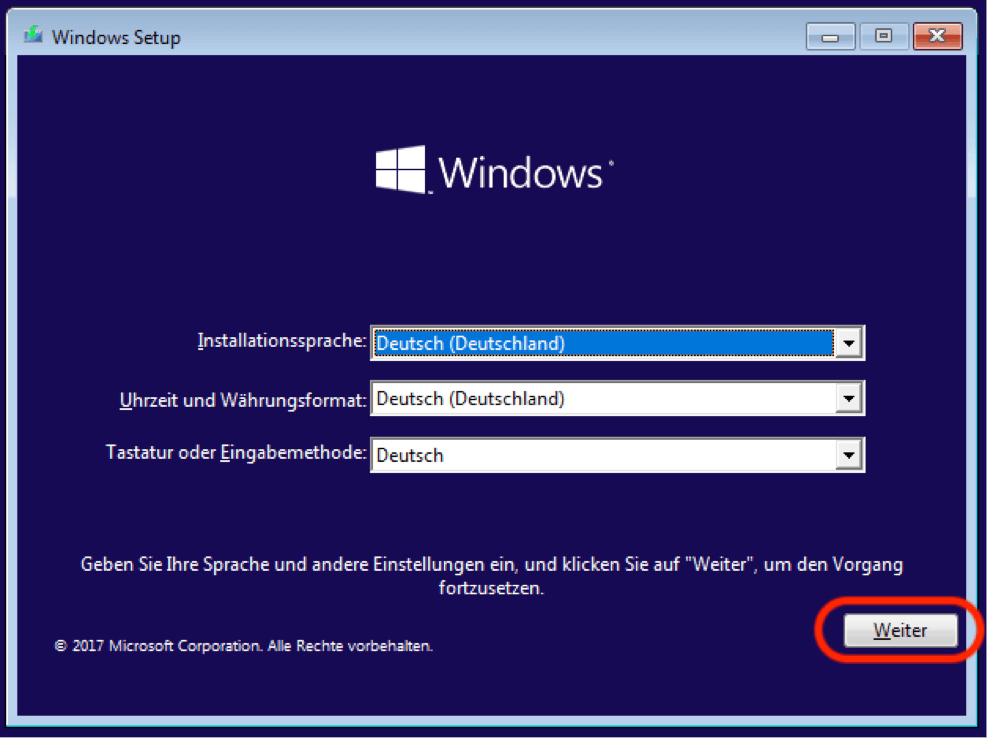
You’re now in the Windows 10 installer. Follow these steps to install the OS:

  1. Select Your Preferences:
    On the setup screen, choose your language, time zone, and keyboard layout. Once done, click Next.
  2. Start the Installation:
    Click on Install Now to begin the process.
  3. Enter Your Product Key:
    You’ll be prompted to enter your Windows 10 license key. If you don’t have one, select the option to skip this step—you can activate Windows later.
  4. Choose Installation Type:
    When asked how you want to install Windows, select Custom: Install Windows only (advanced). This option lets you install Windows from scratch.
  5. Partition the Drive:
    • You’ll see a list of partitions (these represent how your hard drive is currently divided).
    • Delete all existing partitions related to Ubuntu to free up space. Caution: Ensure you’ve backed up everything you need because this step is irreversible.
    • Once all partitions are deleted, select the unallocated space and click Next. The installer will create a new partition and begin the installation.
  6. Wait for the Installation to Complete:
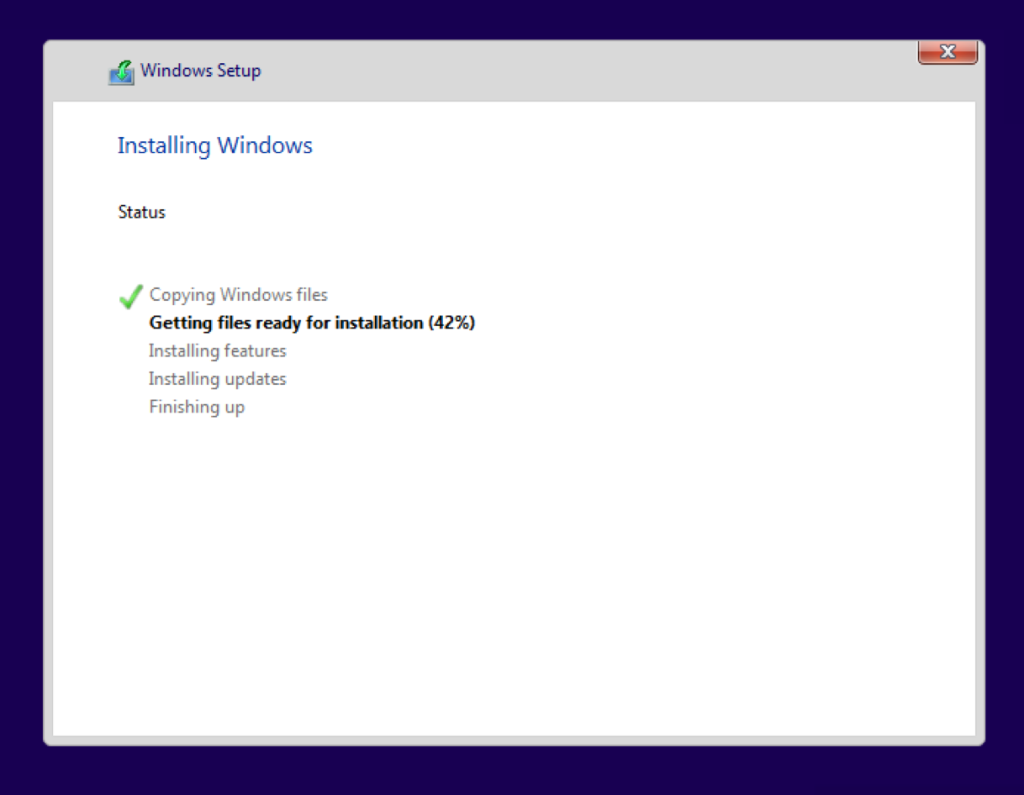
    Sit back and relax! The installer will copy files, install features, and configure your system. Your computer may restart several times during the process.

Step 3: Setting Up Windows 10
After installation, your computer will restart and load Windows 10 for the first time. Here’s what to do next:

  1. Personalize Your Settings:
    Follow the on-screen instructions to set up your account, connect to Wi-Fi, and choose your privacy settings.
  2. Install Updates and Drivers:
    • Connect to the internet and run Windows Update to download the latest patches and drivers for your hardware.
    • If specific devices (like your graphics card or Wi-Fi adapter) aren’t working, visit the manufacturer’s website to download and install the necessary drivers.
  3. Activate Windows:
    • Go to Settings > Update & Security > Activation.
    • Enter your product key here if you skipped the activation step earlier.

Step 4: Finishing Touches

  1. Reinstall Your Apps:
    Download and install the applications you need for work or entertainment.
  2. Transfer Back Your Files:
    If you backed up your data earlier, now’s the time to restore it.
  3. Explore Your New OS:
    Familiarize yourself with Windows 10. Check out features like Cortana, the Microsoft Store, and the Task Manager.

FAQs

  • Can I dual-boot Ubuntu and Windows 10?
    Yes, but this process is different and requires partitioning your hard drive carefully. If you’d like to dual-boot, let me know!
  • What happens if I don’t have a Windows 10 product key?
    You can install Windows 10 without a product key, but certain features will be limited until you activate it.
  • Do I need an internet connection to install Windows?
    No, but you’ll need one later to download updates and activate Windows.

Switching from Ubuntu to Windows 10 can feel like a big change, but with a little patience, you’ll have a fully functional Windows system in no time. If you get stuck or need help at any step, feel free to ask. Good luck! 🎉

Post Views: 1,457
  • How to change my OS
  • How to change my OS from Ubuntu to Windows 10
  • operating system
  • OS
  • Ubuntu to Windows
  • Ubuntu to Windows 10
  • Windows 10
  • Windows 10 Installer
Subscribe
Login
Notify of
guest
guest
0 Comments
Oldest
Newest Most Voted
Inline Feedbacks
View all comments
  • Linux Server Diagnostic Commands: Complete Guide for Performance, Network & System Troubleshooting
  • The Ultimate Guide to CDOM – Certified DataOps Manager Certification
  • The Practical Path to AI Reliability: A Guide to the Certified MLOps Manager
  • Master the Machine Learning Lifecycle:Guide to Becoming a Certified MLOps Architect
  • How to Build a Project-Level AI Memory System That Works Across Codex, Claude, and Other AI Coding Tools
  • Certified MLOps Professional: A Deep Dive into the Certified MLOps Professional Certification
  • Certified MLOps Engineer : The Comprehensive Guide to Mastering Machine Learning Operations
  • Codex vs Claude: A Complete Practical Guide for Modern Developers (2026)
  • Certified AIOps Professional Program A Guide to Career Growth
  • Keycloak Multi-Client Architecture with Project-Based Email Validation (Student, Trainer, Company, Consulting)
  • Incorrect definition of table mysql.column_stats
  • Mautic and PHP 8.3 Compatibility Guide (2026)
  • Certified AIOps Engineer: The Complete Career Path and Certification Guide
  • How to Rename Apache Virtual Host Files Safely (Step-by-Step Guide for Linux)
  • AIOps Foundation Certification: Everything You Need to Know to Get Certified
  • DevOps to Certified Site Reliability Professional: A Senior Mentor’s Guide
  • Certified Site Reliability Manager Training, Preparation, and Career Mapping
  • Certified Site Reliability Architect: The Complete Career Guide
  • What Is a VPN? A Complete Beginner-to-Advanced Tutorial
  • How to Install, Secure, and Tune MySQL 8.4 on Ubuntu 24.04 for Apache Event MPM and PHP-FPM
  • Complete Guide to Certified Site Reliability Engineer Career
  • Certified DevSecOps Professional Step by Step
  • Certified DevSecOps Manager: Complete Career Guide
  • Certified DevSecOps Engineer: Skills, Career Path and Certification Guide
  • Step-by-Step: Become a Certified DevSecOps Architect
  • Tuning PHP 8.3 for Apache Event MPM and PHP-FPM on Ubuntu: A Complete Step-by-Step Production Guide
  • Complete Step-by-Step Guide to Configure Apache Event MPM, Create index.php, Set Up VirtualHost, and Fix Ubuntu Default Page
  • Convert XAMPP Apache to Event MPM + System PHP-FPM
  • The Gateway to System Observability Engineering (MOE)
  • How to Finetune Apache and Prove It Works: A Real-World Guide to Testing Performance, Concurrency, HTTP/2, Memory, CPU, and Security

Recent Comments

  1. emmy day on SQLSTATE[42S22]: Column not found: 1054 Unknown column ‘provider’ in ‘field list’
  2. digital banking on Complete Tutorial: Setting Up Laravel Telescope Correctly (Windows + XAMPP + Custom Domain)
  3. SAHIL DHINGRA on How to Uninstall Xampp from your machine when it is not visible in Control panel programs & Feature ?
  4. Abhishek on MySQL: List of Comprehensive List of approach to secure MySQL servers.
  5. Kristina on Best practices to followed in .httacess to avoid DDOS attack?

Archives

  • April 2026
  • March 2026
  • February 2026
  • January 2026
  • December 2025
  • November 2025
  • October 2025
  • September 2025
  • August 2025
  • July 2025
  • June 2025
  • May 2025
  • April 2025
  • March 2025
  • February 2025
  • January 2025
  • December 2024
  • November 2024
  • October 2024
  • September 2024
  • August 2024
  • July 2024
  • June 2024
  • May 2024
  • April 2024
  • March 2024
  • February 2024
  • January 2024
  • December 2023
  • November 2023
  • October 2023
  • September 2023
  • August 2023
  • July 2023
  • May 2023
  • April 2023
  • March 2023
  • February 2023
  • January 2023
  • December 2022

Categories

  • Ai
  • AI Blogging
  • AiOps
  • ajax
  • Android Studio
  • Antimalware
  • Antivirus
  • Apache
  • Api
  • API Security
  • Api Testing
  • APK
  • Aws
  • Bike Rental Services
  • ChatGPT
  • Code Linting
  • Composer
  • cPanel
  • Cyber Threat Intelligence
  • Cybersecurity
  • Data Loss Prevention
  • Database
  • dataops
  • Deception Technology
  • DeepSeek
  • Devops
  • DevSecOps
  • DevTools
  • Digital Asset Management
  • Digital Certificates
  • Docker
  • Drupal
  • emulator
  • Encryption Tools
  • Endpoint Security Tools
  • Error
  • facebook
  • Firewalls
  • Flutter
  • git
  • GITHUB
  • Google Antigravity
  • Google play console
  • Google reCAPTCHA
  • Gradle
  • Guest posting
  • health and fitness
  • IDE
  • Identity and Access Management
  • Incident Response
  • Instagram
  • Intrusion Detection and Prevention Systems
  • jobs
  • Joomla
  • Keycloak
  • Laravel
  • Law News
  • Lawyer Discussion
  • Legal Advice
  • Linkedin
  • Linkedin Api
  • Linux
  • Livewire
  • Mautic
  • Medical Tourism
  • MlOps
  • MobaXterm
  • Mobile Device Management
  • Multi-Factor Authentication
  • MySql
  • Network Traffic Analysis tools
  • Paytm
  • Penetration Testing
  • php
  • PHPMyAdmin
  • Pinterest Api
  • Quora
  • SAST
  • SecOps
  • Secure File Transfer Protocol
  • Security Analytics Tools
  • Security Auditing Tools
  • Security Information and Event Management
  • Seo
  • Server Management Tools
  • Single Sign-On
  • Site Reliability Engineering
  • soft 404
  • software
  • SuiteCRM
  • SysOps
  • Threat Model
  • Twitter
  • Twitter Api
  • ubuntu
  • Uncategorized
  • Virtual Host
  • Virtual Private Networks
  • VPNs
  • Vulnerability Assessment Tools
  • Web Application Firewalls
  • Windows Processor
  • Wordpress
  • WSL (Windows Subsystem for Linux)
  • X.com
  • Xampp
  • Youtube
©2026 DevSecOps Now!!! | WordPress Theme: EcoCoded
wpDiscuz