Limited Time Offer!
For Less Than the Cost of a Starbucks Coffee, Access All DevOpsSchool Videos on YouTube Unlimitedly.
Master DevOps, SRE, DevSecOps Skills!
LinkedIn is the world’s largest professional networking platform, making it a must-have tool for businesses looking to establish their brand, attract potential clients, and build credibility. Unlike other social media platforms, LinkedIn is designed specifically for professionals, which makes it one of the best places to showcase your company, connect with industry leaders, and generate leads.
If you’re wondering how to create and optimize a LinkedIn company page, don’t worry—I’ve got you covered! This step-by-step guide will walk you through everything, from setting up your page to engaging with your audience and growing your brand.
Step 1: Create a LinkedIn Company Page
Before you can create a LinkedIn company page, you need to have a personal LinkedIn account. If you don’t already have one, sign up at LinkedIn.com and complete your profile.
Once you have a LinkedIn profile, follow these steps to create your company page:
- Log in to your LinkedIn account and go to the homepage.
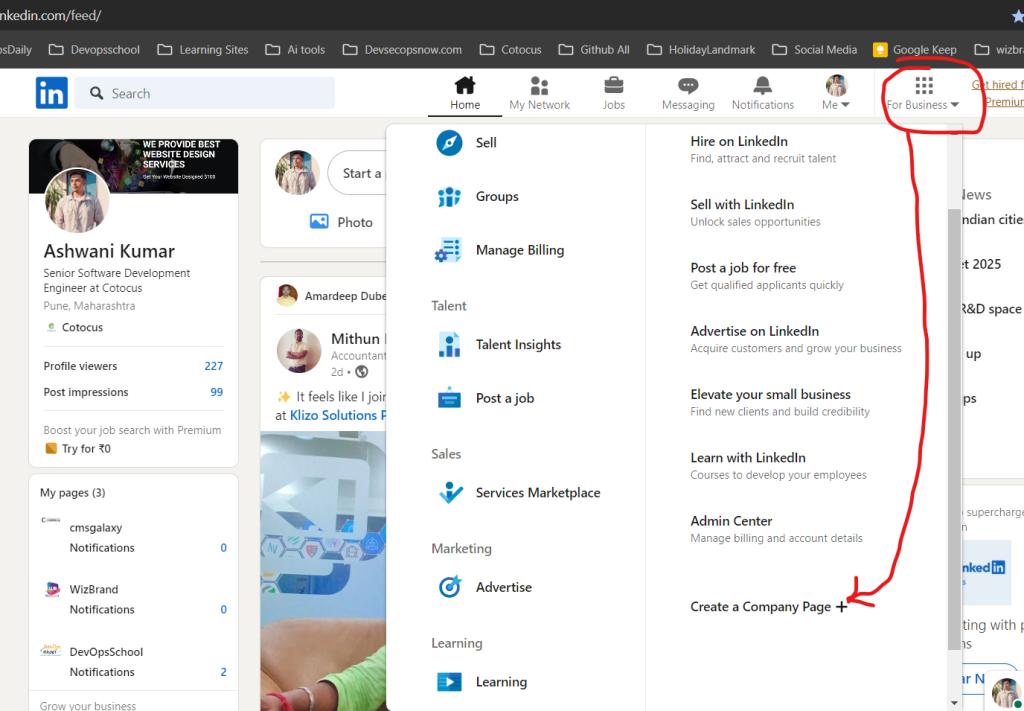
- Click on the “Work” icon in the top right corner of the screen.
- Scroll down and select “Create a Company Page.”
- Choose the type of page that best fits your business:
- Small Business (Less than 200 employees).
- Medium to Large Business (More than 200 employees).
- Showcase Page (For sub-brands, business units, or product pages).
- Educational Institution (For schools, colleges, and universities).
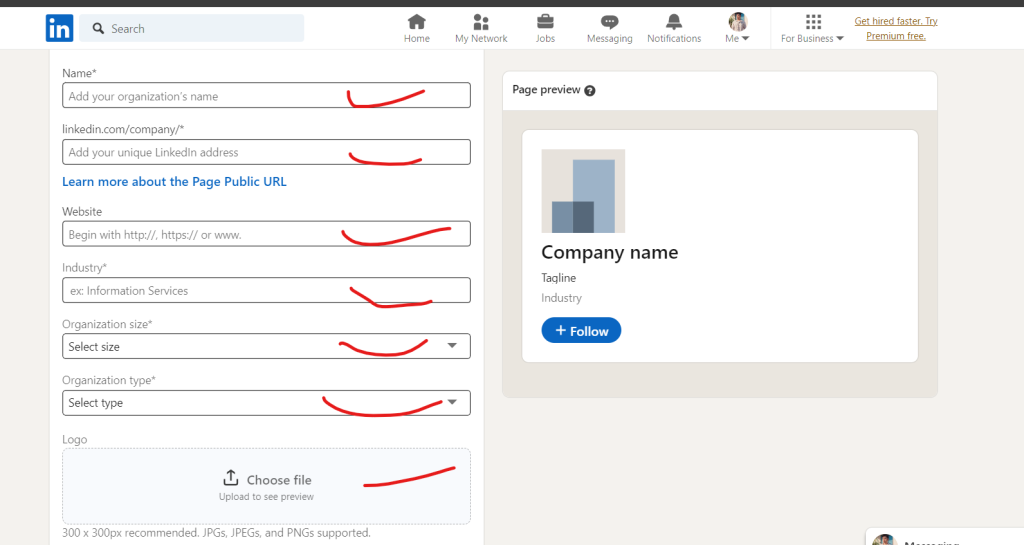
- Enter your company name, choose a custom LinkedIn URL, and upload your company logo.
- Add a business tagline that briefly explains what your company does.
Once you’ve filled in these details, click “Create Page.” Congratulations! Your LinkedIn company page is now live.
Step 2: Optimize Your LinkedIn Company Page
Now that your page is set up, the next step is to make it look professional and engaging. A well-optimized LinkedIn company page builds trust and encourages people to follow your business.
1. Upload a Professional Company Logo
Your logo represents your brand, so it’s important to upload a high-quality, clear image. LinkedIn recommends using a 300 x 300-pixel image in PNG or JPG format.
2. Add an Eye-Catching Cover Image
Your cover image is one of the first things visitors see when they land on your page. It should reflect your brand’s identity, mission, or a campaign you’re currently running. The recommended dimensions for LinkedIn cover photos are 1128 x 191 pixels.
3. Write a Strong “About” Section
Your About section is your chance to tell visitors who you are, what you do, and why they should care. Keep it clear, concise, and engaging. Here’s what to include:
- Who you are – A brief introduction to your business.
- What you do – A short description of your products or services.
- Your mission and values – What drives your business and makes it unique?
- A call to action – Invite visitors to follow your page, visit your website, or contact you.
A well-written About section with relevant keywords can improve your page’s visibility in LinkedIn search results.
4. Add Essential Business Information
Make sure to fill in all the key details about your company, including:
- Website URL – So visitors can easily check out your website.
- Industry – Helps LinkedIn categorize your business.
- Company size – Gives visitors a better understanding of your team.
- Headquarters location – Helps with local search visibility.
- Year founded – Establishes credibility.
5. Add a Custom Call-to-Action (CTA) Button
LinkedIn allows you to add a custom CTA button to your company page. This button can direct visitors to your website, contact page, or a specific landing page. The available options include:
- Visit Website
- Contact Us
- Learn More
- Register
Choose a CTA that aligns with your business goals and makes it easy for potential customers to take action.
Step 3: Add Team Members and Page Admins
Your LinkedIn company page should be managed by multiple team members to keep it active and engaging.
To add admins:
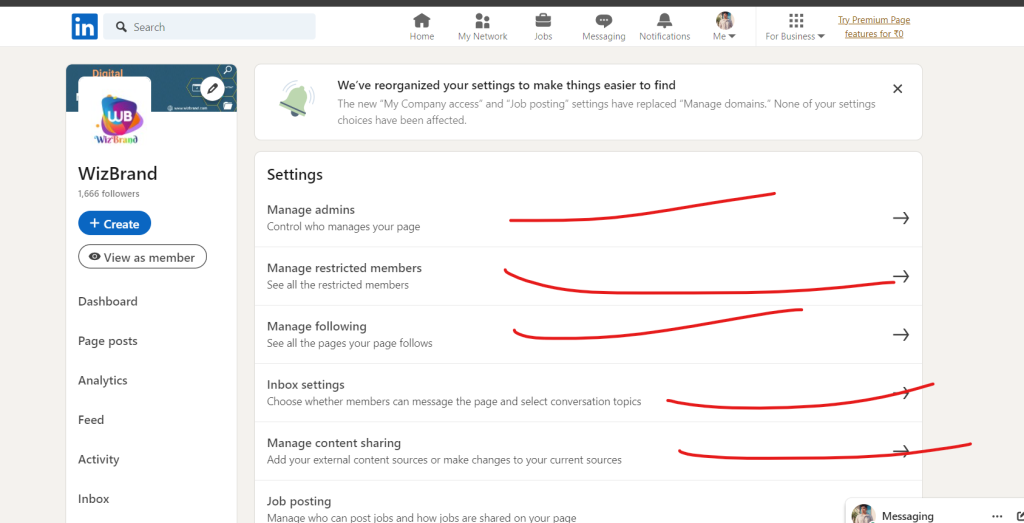
- Go to your company page and click on Admin Tools in the top right corner.
- Select “Manage Admins.”
- Add team members as Super Admins, Content Admins, or Analysts, depending on their roles.
Encourage employees to list your company as their workplace on their personal LinkedIn profiles. This increases your company’s credibility and visibility.
Step 4: Start Posting High-Quality Content
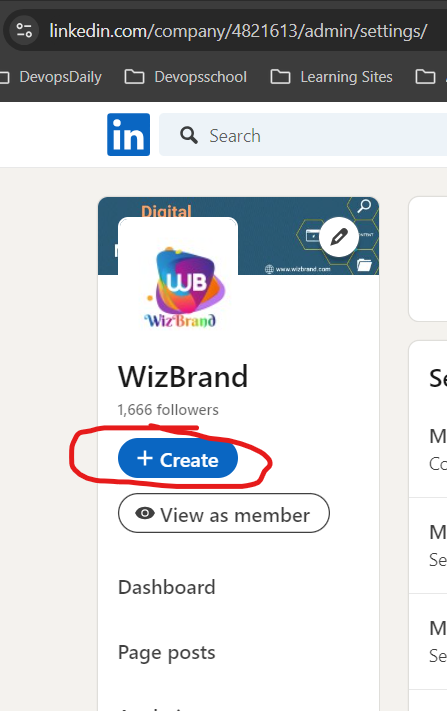
Now that your company page is set up, it’s time to start posting content to engage your audience and attract followers.
What Kind of Content Should You Post?
- Company updates – Share news about your business, new hires, awards, or events.
- Industry insights – Post valuable information related to your industry.
- Employee spotlights – Showcase your team members and company culture.
- Case studies and success stories – Demonstrate how your products or services have helped customers.
- Videos and presentations – Visual content tends to perform well on LinkedIn.
- Polls and interactive posts – Encourage engagement by asking for opinions or feedback.
How Often Should You Post?
Consistency is key to growing your LinkedIn presence. A good rule of thumb is to post at least three to five times per week.
To make content planning easier, use scheduling tools like Hootsuite, Buffer, or LinkedIn’s built-in scheduling feature.
Step 5: Engage with Your Audience
Simply posting content isn’t enough—you also need to interact with your followers. Engagement boosts your visibility on LinkedIn and helps build meaningful relationships with potential customers.
How to Increase Engagement on LinkedIn:
- Reply to comments on your posts to encourage conversations.
- Like and share relevant content from other industry leaders.
- Join and participate in LinkedIn Groups related to your industry.
- Encourage employees to engage with company posts by commenting and sharing.
Engagement signals to LinkedIn that your content is valuable, which can increase its reach.
Step 6: Use LinkedIn Ads to Boost Your Reach (Optional)
If you want to reach a larger audience or generate leads quickly, consider using LinkedIn Ads.
To set up LinkedIn Ads:
- Go to LinkedIn Campaign Manager and create an ad account.
- Choose your advertising objective (brand awareness, lead generation, website visits, etc.).
- Select your target audience based on location, industry, job title, and company size.
- Set your budget and choose between Sponsored Content, Text Ads, or Message Ads.
- Launch your campaign and track performance using LinkedIn Analytics.
LinkedIn Ads can be particularly useful for B2B businesses looking to connect with decision-makers.
Step 7: Track Your Performance with LinkedIn Analytics
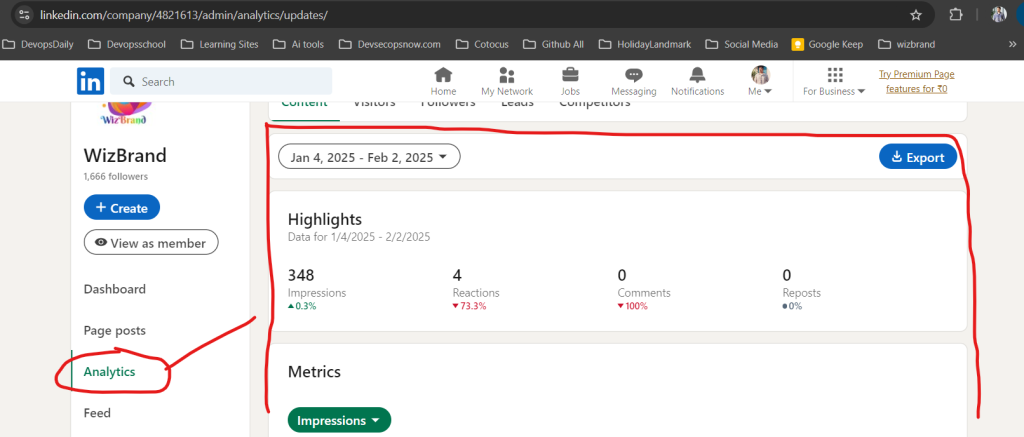
Once your page is active, regularly check LinkedIn Analytics to measure your success and see what’s working.
To access LinkedIn Analytics:
- Go to your Company Page and click on Analytics in the top menu.
- Monitor key metrics like:
- Page visitors and follower growth
- Post engagement (likes, comments, shares)
- Click-through rates on your CTA button
Use these insights to adjust your content strategy and improve your reach.
