Skip to content
Menu
DevSecOps Now!!!
  • About
  • Certifications
  • Contact
  • Courses
  • DevSecOps Consulting
  • DevSecOps Tools
  • Training
  • Tutorials
DevSecOps Now!!!

Step-By-Step guide to download and run the BlueStacks emulator and install apps from the Google Play Store and APK file

Posted on January 4, 2025

Limited Time Offer!

For Less Than the Cost of a Starbucks Coffee, Access All DevOpsSchool Videos on YouTube Unlimitedly.
Master DevOps, SRE, DevSecOps Skills!

Enroll Now

Here’s a step-by-step guide to download and run the BlueStacks emulator and install apps from the Google Play Store:

Step 1: Download BlueStacks Emulator

  1. Visit the Official Website
    Open your web browser and go to the official BlueStacks website:
    https://www.bluestacks.com
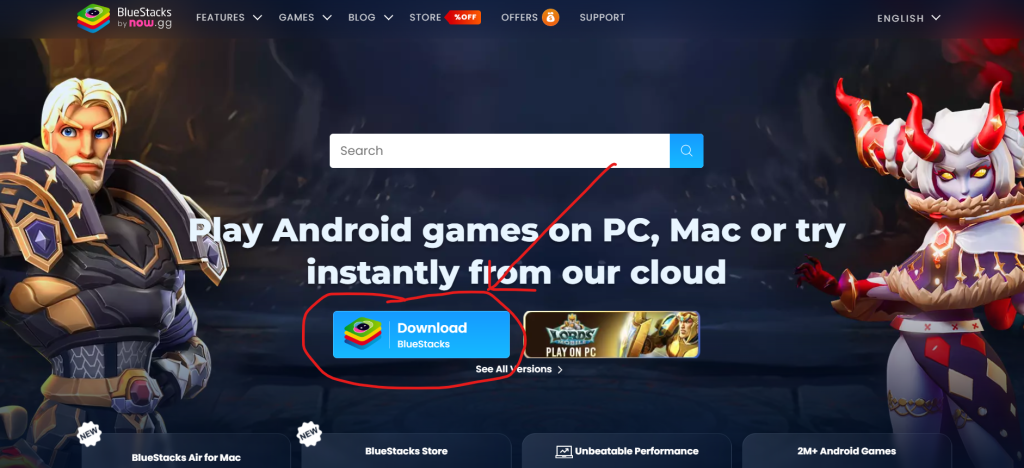
  1. Download BlueStacks
    • Click the “Download BlueStacks” button on the homepage.
    • Ensure you select the version compatible with your operating system (Windows or macOS).
  2. Save the File
    • Save the downloaded installation file to your desired location on your computer.

Step 2: Install BlueStacks Emulator

  1. Run the Installer
    • Double-click the downloaded installation file to start the setup.
  2. Follow the Installation Prompts
    • Accept the terms and conditions by clicking “Agree” or “Next”.
    • Choose the installation directory if prompted. The default location is recommended for most users.
  3. Complete the Installation
    • Wait for the installation process to complete.
    • Click “Finish” once it’s done. BlueStacks will launch automatically after installation.
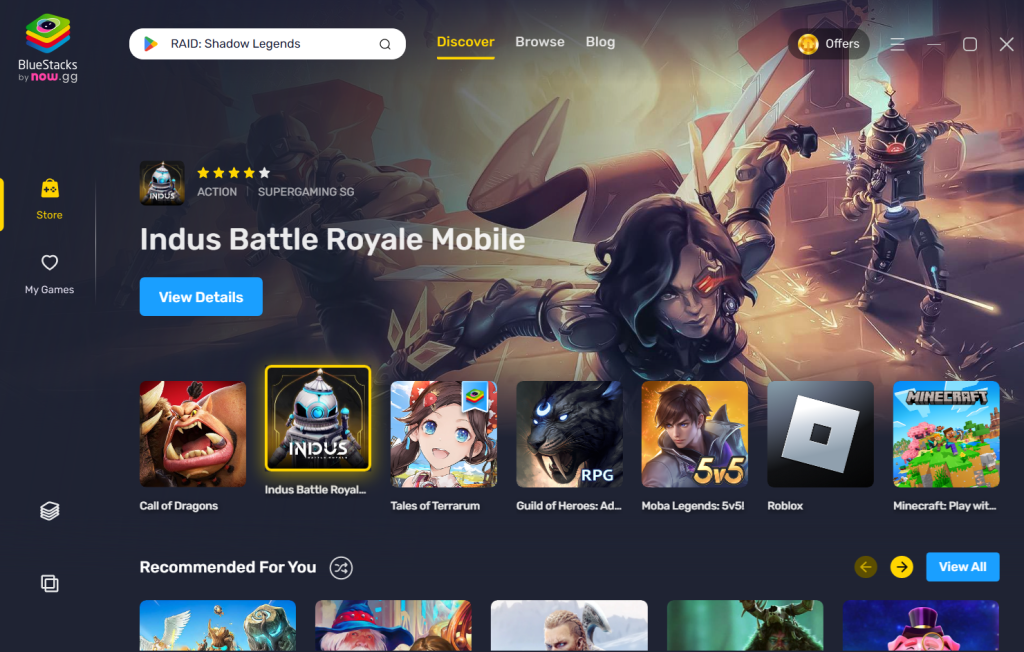
Step 3: Set Up BlueStacks
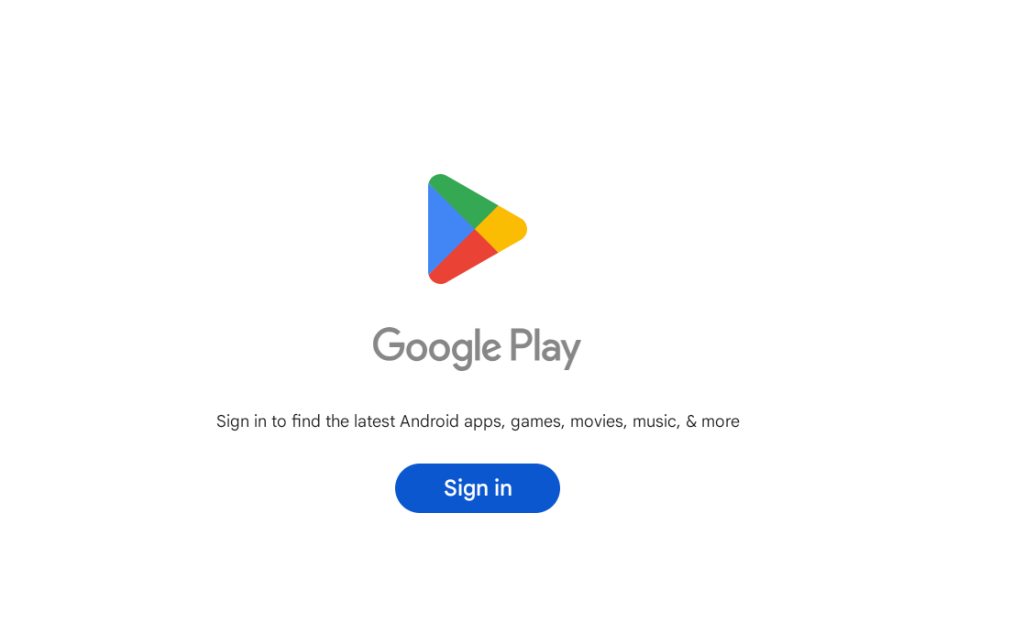
  1. Sign In to Google Account
    • When BlueStacks launches for the first time, it will ask you to sign in with your Google account.
    • Enter your email and password. If you don’t have a Google account, create one using the “Create Account” option.
  2. Grant Permissions
    • BlueStacks may request permissions like accessing your location or syncing data. Allow these as needed to use all features.

Step 4: Access the Google Play Store
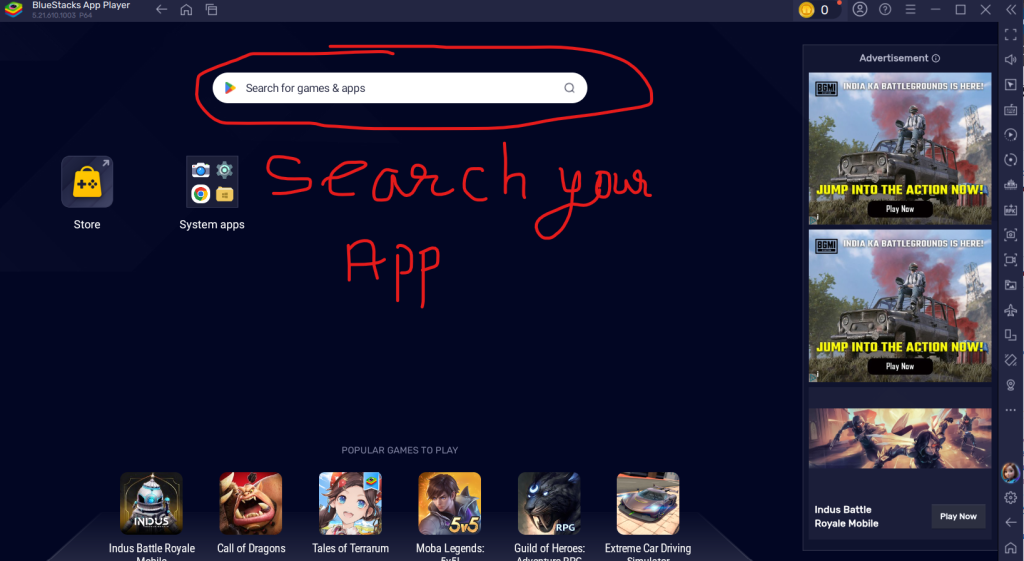
  1. Open Google Play Store
    • Locate the Google Play Store app icon on the BlueStacks home screen.
    • Click it to open.
  2. Search for Apps
    • Use the search bar at the top to find the app you want to install.
    • Example: Type “WhatsApp” or any desired app name and press Enter.

Step 5: Install Apps from Google Play Store
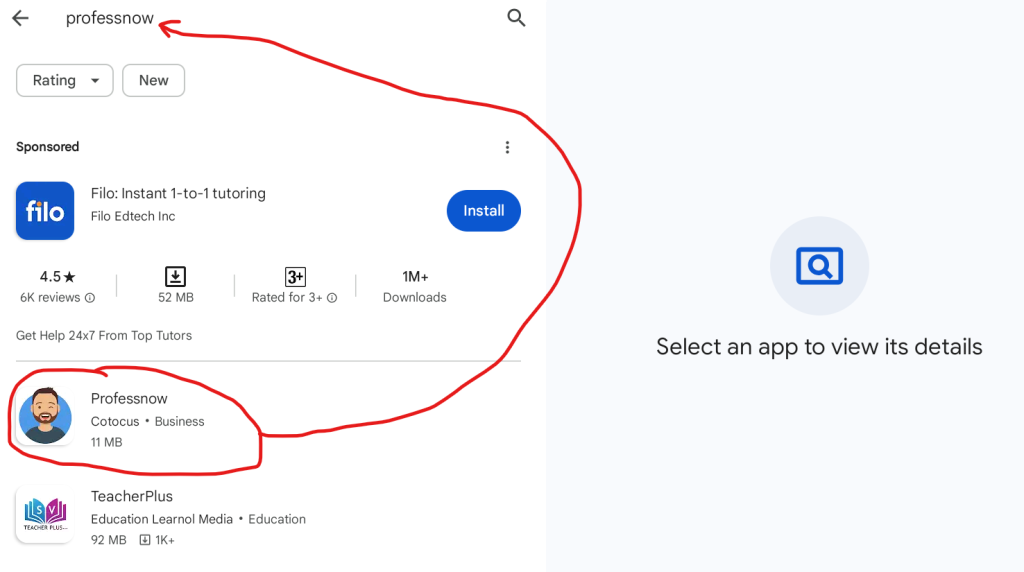
  1. Select the App
    • From the search results, click on the app you want to install.
  2. Install the App
    • Click the “Install” button.
    • Wait for the download and installation process to complete.
  3. Open the App
    • After installation, click “Open” or find the app icon on the BlueStacks home screen to launch it.

Step 6: Use Installed Apps

  1. Launch the App
    • Click on the app icon to open it.
    • Sign in or follow the setup process for the specific app.
  2. Enjoy Full Android Experience
    • Use the app just like you would on a physical Android device.

Step 7: Additional Tips for Optimizing BlueStacks

  1. Adjust Performance Settings
    • Go to Settings (gear icon in BlueStacks).
    • Adjust CPU, RAM allocation, or resolution for smoother performance.
  2. Enable Virtualization
    • For better speed, enable virtualization in your system’s BIOS settings.
    • Instructions for this can be found on the BlueStacks support page.
  3. Sync Files Between PC and Emulator
    • Use the Media Manager tool in BlueStacks to transfer files like images and APKs between your PC and the emulator.

For APK File

When you want to run an APK in BlueStacks, follow these straightforward steps:

1. Prepare the APK File

  • Download the APK File: Get the APK file of the Android app or game you want to run. Ensure it comes from a trusted source to avoid malware.

2. Open BlueStacks

  • Launch BlueStacks: Start the BlueStacks emulator on your computer. If you haven’t installed it yet, download and set it up from www.bluestacks.com.

3. Install the APK

You have two primary options to install the APK in BlueStacks:

Option 1: Drag and Drop

  1. Locate the APK file on your computer.
  2. Drag the APK file and drop it into the BlueStacks window.
  3. BlueStacks will automatically install the APK, and it will appear on the home screen.

Option 2: Use the BlueStacks Install APK Button
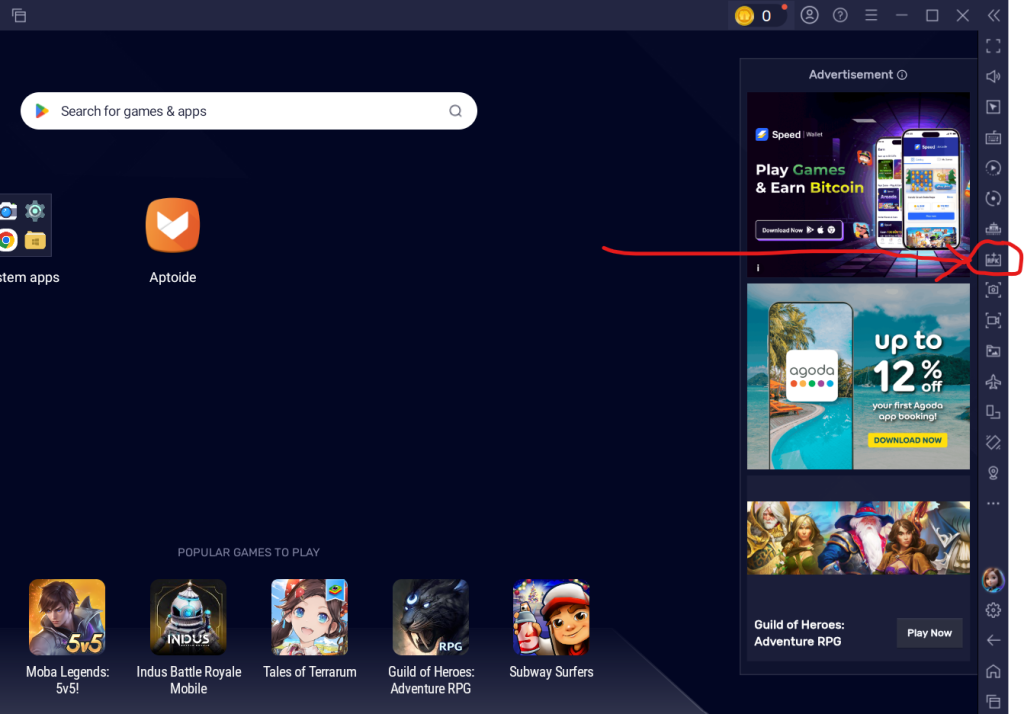
  1. Locate the APK Install Option:
    • In BlueStacks, find and click on the “Install APK” button in the toolbar or from the bottom-right menu.
  2. Select the APK File:
    • Navigate to the location of your APK file and select it.
  3. Install the APK:
    • BlueStacks will install the app, and it will appear on the home screen.

4. Run the Installed App

  1. Locate the App:
    • Once installed, the app will be visible on the BlueStacks home screen or app drawer.
  2. Click to Open:
    • Click the app icon to launch it. It will run in a new tab within BlueStacks.

5. Customize Settings (Optional)

  • Set Performance Preferences: If the app requires higher performance, allocate more RAM and CPU to BlueStacks from the settings (gear icon in the top-right corner).
  • Adjust Controls: For games, customize controls using the keyboard mapping tool in the sidebar.

6. Troubleshoot Issues (if any)

  • APK Fails to Install:
    • Ensure the APK file isn’t corrupted and is compatible with BlueStacks.
  • App Not Running Smoothly:
    • Update BlueStacks to the latest version.
    • Close other running programs to free up system resources.
  • Graphics Problems:
    • Update your PC’s graphics drivers or switch the graphics mode (OpenGL/DirectX) in BlueStacks settings.

By following these steps, you can successfully run APKs in BlueStacks and enjoy your favorite Android apps on your PC or Mac.

Post Views: 4,674
  • BlueStacks emulator
  • BlueStacks emulator and install apps from the Google Play Store
  • download and run the BlueStacks emulator and install apps from the Google Play Store
  • emulator
  • Google Play Store
  • install apps
  • Step-By-Step guide to download
  • Step-By-Step guide to download and run the BlueStacks emulator
Subscribe
Login
Notify of
guest
guest
0 Comments
Oldest
Newest Most Voted
Inline Feedbacks
View all comments
  • Mastering Secure Software Delivery by Solving DevSecOps Adoption Challenges
  • Operationalizing Security for Faster and Safer Software Deployments
  • DevSecOps Server Security Checklist 2026: 50 Must-Check Points Before Going Live
  • The Complete DevOps Salary Overview for IT Professionals
  • The Modern DevOps Certification Guide: Roadmaps for Every Engineering Role
  • Security Champions in DevSecOps: Responsibilities and Best Practices
  • The DevSecOps Handbook for Shift-Left Security
  • Top DevSecOps Principles for Effective Secure Software Delivery
  • Guide to DevSecOps Maturity Levels for Platform and Security Teams
  • Canada PR CRS Calculator: Express Entry Points System Explained
  • Austria PR Points Calculator: Ultimate Guide to Navigating the Red-White-Red Card System
  • The Essential Guide to Enterprise DevSecOps Implementation
  • How to Set Up Claude Code Agent on a Local Windows Laptop and Use claude Command from Anywhere
  • DevOps and DevSecOps Explained: Bridging the Gap Between Speed and Security
  • Comprehensive Manual on DevOps Methodologies and Cloud Native Engineering
  • The Master Guide to Immigration Points: Calculating Your Path to Canada, Australia, and Beyond
  • How to Skip the Activation Email and Password Reset After Google Login in Keycloak Auto-Link Existing Users in First Broker Login
  • Free SSL Certificate Generation Tutorial for Any Website Using Certbot and Apache
  • The Ultimate Guide to Certified FinOps Professional: Skills, Levels, and Career Impact
  • Certified FinOps Manager: Essential Skills for Modern Cloud Operations
  • How to Use Claude AI for Programming: Complete Guide for Developers to Boost Productivity
  • The Definitive Guide to Certified FinOps Engineer: Master Cloud Value Engineering
  • A Comprehensive Guide to the Certified FinOps Architect Certification and Training
  • Linux Server Diagnostic Commands: Complete Guide for Performance, Network & System Troubleshooting
  • The Ultimate Guide to CDOM – Certified DataOps Manager Certification
  • The Practical Path to AI Reliability: A Guide to the Certified MLOps Manager
  • Master the Machine Learning Lifecycle:Guide to Becoming a Certified MLOps Architect
  • How to Build a Project-Level AI Memory System That Works Across Codex, Claude, and Other AI Coding Tools
  • Certified MLOps Professional: A Deep Dive into the Certified MLOps Professional Certification
  • Certified MLOps Engineer : The Comprehensive Guide to Mastering Machine Learning Operations

Recent Comments

  1. emmy day on SQLSTATE[42S22]: Column not found: 1054 Unknown column ‘provider’ in ‘field list’
  2. digital banking on Complete Tutorial: Setting Up Laravel Telescope Correctly (Windows + XAMPP + Custom Domain)
  3. SAHIL DHINGRA on How to Uninstall Xampp from your machine when it is not visible in Control panel programs & Feature ?
  4. Abhishek on MySQL: List of Comprehensive List of approach to secure MySQL servers.
  5. Kristina on Best practices to followed in .httacess to avoid DDOS attack?

Archives

  • June 2026
  • May 2026
  • April 2026
  • March 2026
  • February 2026
  • January 2026
  • December 2025
  • November 2025
  • October 2025
  • September 2025
  • August 2025
  • July 2025
  • June 2025
  • May 2025
  • April 2025
  • March 2025
  • February 2025
  • January 2025
  • December 2024
  • November 2024
  • October 2024
  • September 2024
  • August 2024
  • July 2024
  • June 2024
  • May 2024
  • April 2024
  • March 2024
  • February 2024
  • January 2024
  • December 2023
  • November 2023
  • October 2023
  • September 2023
  • August 2023
  • July 2023
  • May 2023
  • April 2023
  • March 2023
  • February 2023
  • January 2023
  • December 2022

Categories

  • Ai
  • AI Blogging
  • AiOps
  • ajax
  • Android Studio
  • Antimalware
  • Antivirus
  • Apache
  • Api
  • API Security
  • Api Testing
  • APK
  • Aws
  • Bike Rental Services
  • ChatGPT
  • Code Linting
  • Composer
  • cPanel
  • Cyber Threat Intelligence
  • Cybersecurity
  • Data Loss Prevention
  • Database
  • dataops
  • Deception Technology
  • DeepSeek
  • Devops
  • DevSecOps
  • DevTools
  • Digital Asset Management
  • Digital Certificates
  • Docker
  • Drupal
  • emulator
  • Encryption Tools
  • Endpoint Security Tools
  • Error
  • facebook
  • Firewalls
  • Flutter
  • git
  • GITHUB
  • Google Antigravity
  • Google play console
  • Google reCAPTCHA
  • Gradle
  • Guest posting
  • health and fitness
  • IDE
  • Identity and Access Management
  • Incident Response
  • Instagram
  • Intrusion Detection and Prevention Systems
  • jobs
  • Joomla
  • Keycloak
  • Laravel
  • Law News
  • Lawyer Discussion
  • Legal Advice
  • Linkedin
  • Linkedin Api
  • Linux
  • Livewire
  • Mautic
  • Medical Tourism
  • MlOps
  • MobaXterm
  • Mobile Device Management
  • Multi-Factor Authentication
  • MySql
  • Network Traffic Analysis tools
  • Paytm
  • Penetration Testing
  • php
  • PHPMyAdmin
  • Pinterest Api
  • Quora
  • SAST
  • SecOps
  • Secure File Transfer Protocol
  • Security Analytics Tools
  • Security Auditing Tools
  • Security Information and Event Management
  • Seo
  • Server Management Tools
  • Single Sign-On
  • Site Reliability Engineering
  • soft 404
  • software
  • SSL
  • SuiteCRM
  • SysOps
  • Threat Model
  • Twitter
  • Twitter Api
  • ubuntu
  • Uncategorized
  • Virtual Host
  • Virtual Private Networks
  • VPNs
  • Vulnerability Assessment Tools
  • Web Application Firewalls
  • Windows Processor
  • Wordpress
  • WSL (Windows Subsystem for Linux)
  • X.com
  • Xampp
  • Youtube
©2026 DevSecOps Now!!! | WordPress Theme: EcoCoded
wpDiscuz