Skip to content
Menu
DevSecOps Now!!!
  • About
  • Certifications
  • Contact
  • Courses
  • DevSecOps Consulting
  • DevSecOps Tools
  • Training
  • Tutorials
DevSecOps Now!!!

Complete Joomla Installation Guide for Linux and Windows

Posted on July 25, 2025

Limited Time Offer!

For Less Than the Cost of a Starbucks Coffee, Access All DevOpsSchool Videos on YouTube Unlimitedly.
Master DevOps, SRE, DevSecOps Skills!

Enroll Now

What is Joomla and Why Install It?

Joomla is one of the most popular open-source Content Management Systems (CMS). It allows you to build dynamic websites, blogs, e-commerce platforms, and complex web applications without writing code from scratch. It is:

  • Free and community-supported.
  • Flexible with thousands of templates and extensions.
  • Suitable for both beginners and professional developers.

To use Joomla, you need a web server, a database, and PHP. Whether you are on Linux or Windows, the setup process follows the same core logic:
Prepare the server environment.
Download and extract Joomla.
Create a database.
Run the Joomla web installer.
Configure and secure your site.


Joomla Installation on Linux
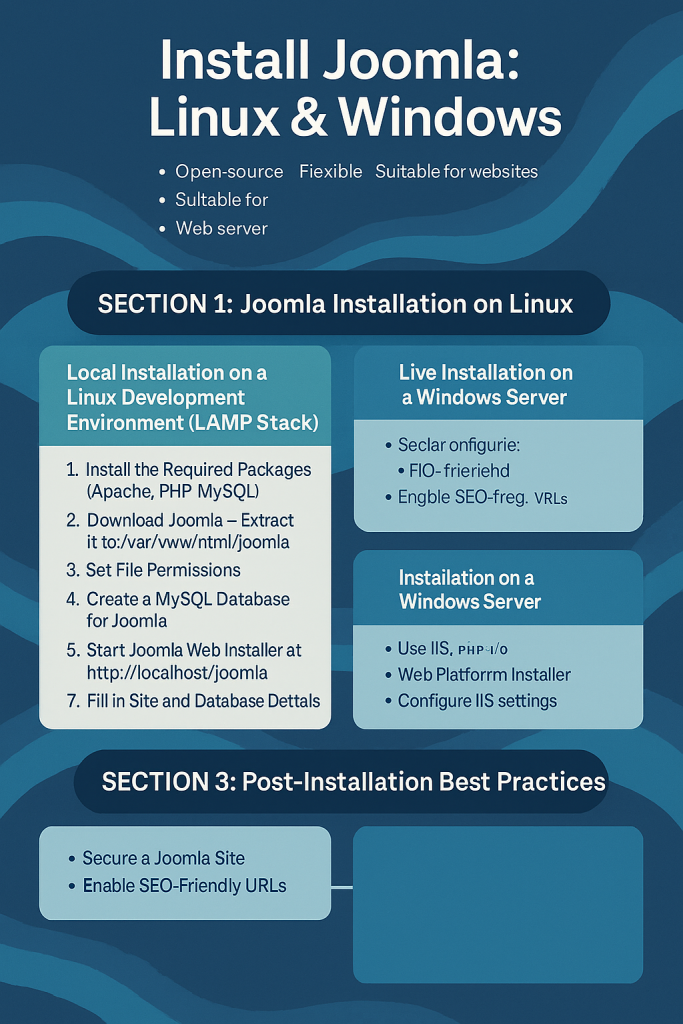
Linux is the most common platform for Joomla, especially for live servers. Weโ€™ll cover both local development (LAMP stack) and live hosting server setup.


A. Local Joomla Installation on Linux (LAMP Stack)

Step 1: Install the Required Packages (Apache, PHP, MySQL)

Linux doesnโ€™t come with web server software pre-installed. Weโ€™ll use the LAMP stack.

On Ubuntu/Debian, open the terminal and run:

sudo apt update
sudo apt install apache2 mysql-server php php-mysql php-xml php-mbstring unzip curl -y
  • Apache2: The web server that serves your Joomla pages.
  • MySQL: Database engine for storing Joomla content.
  • PHP: Server-side scripting language that Joomla runs on.
  • Extensions: php-xml, php-mbstring are required by Joomla.

Step 2: Download Joomla

Navigate to a temporary folder:

cd /tmp
wget https://downloads.joomla.org/cms/joomla4/latest/Joomla_4-Stable-Full_Package.zip

Always download from the official Joomla site to avoid tampered packages.

Step 3: Extract Joomla to the Web Root

sudo mkdir /var/www/html/joomla
sudo unzip Joomla_4-Stable-Full_Package.zip -d /var/www/html/joomla

This will place Joomla files in /var/www/html/joomla.

Step 4: Set File Permissions

Correct permissions are critical for Joomla to function and remain secure.

sudo chown -R www-data:www-data /var/www/html/joomla
sudo chmod -R 755 /var/www/html/joomla
  • www-data is the Apache user on Ubuntu.
  • 755 allows Joomla to run while preventing unauthorized writes.

Step 5: Create a MySQL Database for Joomla

Log into MySQL:

sudo mysql -u root -p

Create a database and user:

CREATE DATABASE joomla_db;
CREATE USER 'joomla_user'@'localhost' IDENTIFIED BY 'StrongPassword';
GRANT ALL PRIVILEGES ON joomla_db.* TO 'joomla_user'@'localhost';
FLUSH PRIVILEGES;
EXIT;

Replace StrongPassword with a secure password.

Step 6: Start Joomla Web Installer

Open your browser and visit:

http://localhost/joomla

Youโ€™ll see the Joomla setup wizard. It will ask for:

  • Site Name
  • Admin Email
  • Admin Username & Password
  • Database Details (name, user, password you created)

Click Install to start the process.

Step 7: Remove the Installation Folder

For security, Joomla disables the site until the installation folder is deleted:

sudo rm -rf /var/www/html/joomla/installation

You now have Joomla running locally on Linux.

  • Frontend: http://localhost/joomla
  • Admin Panel: http://localhost/joomla/administrator

B. Joomla Installation on a Live Linux Server

The process is similar to the local setup, with a few differences:

  1. SSH into your server: ssh username@your_server_ip
  2. Install Apache, MySQL, PHP (same as local).
  3. Upload Joomla via FTP or wget into /var/www/html/yourdomain.
  4. Create a database in MySQL or via your hosting panel.
  5. Point your domain DNS to the server IP.
  6. Run the web installer at https://yourdomain.com.

Tip: Create an Apache Virtual Host to host multiple Joomla sites on one server.


Joomla Installation on Windows

Windows users usually prefer an easy local setup with XAMPP or WAMP. Joomla can also be deployed on Windows Server using IIS.


A. Local Joomla Installation on Windows (XAMPP)

Step 1: Install XAMPP

  • Download XAMPP from https://www.apachefriends.org
  • Install it to C:\xampp.
  • Open XAMPP Control Panel and start:
    • Apache
    • MySQL

Step 2: Download Joomla

  • Get the Joomla ZIP package.
  • Extract it into C:\xampp\htdocs\joomla.

Step 3: Create a Database

  • Go to http://localhost/phpmyadmin.
  • Click Databases โ†’ Create New Database.
  • Name it joomla_db.

Step 4: Run the Joomla Installer

  • Open http://localhost/joomla in your browser.
  • Fill in:
    • Site Name, Admin Login, Password.
    • Database Name: joomla_db
    • Database User: root (default XAMPP user)
    • Leave password blank (unless you set one).

Step 5: Delete Installation Folder

Go to C:\xampp\htdocs\joomla and delete the installation folder.

Joomla is live locally on Windows:

  • Frontend: http://localhost/joomla
  • Backend: http://localhost/joomla/administrator

B. Joomla on Windows Server (IIS)

  1. Install IIS, PHP, and MySQL (or use Web Platform Installer).
  2. Extract Joomla to C:\inetpub\wwwroot\joomla.
  3. Configure IIS to serve PHP pages.
  4. Create a MySQL database.
  5. Access http://yourdomain.com and run the installer.

Post-Installation Best Practices

Secure Your Joomla Site

  • Always update to the latest version.
  • Set strong admin passwords.
  • Use HTTPS.

Enable SEO-Friendly URLs

  • Rename htaccess.txt to .htaccess.
  • Enable Apache mod_rewrite or IIS URL Rewrite.

Install Essential Extensions

  • Akeeba Backup (for full-site backups)
  • Security plugins and caching extensions.

Regular Backups

  • Schedule automatic database and file backups.

Final Thoughts

  • Linux is the preferred environment for production Joomla sites due to stability.
  • Windows (XAMPP/WAMP) is perfect for local development and testing.
  • The core process is the same:
    Prepare environment โ†’ Download Joomla โ†’ Create database โ†’ Run installer โ†’ Secure site.
Post Views: 791
  • Complete Joomla Installation
  • Joomla
  • Joomla Installation
  • Joomla Installation in linux
  • Joomla Installation in windows
  • Joomla Installation on Linux
  • Joomla Installation on Windows
Subscribe
Login
Notify of
guest
guest
0 Comments
Oldest
Newest Most Voted
Inline Feedbacks
View all comments
  • Linux Server Diagnostic Commands: Complete Guide for Performance, Network & System Troubleshooting
  • The Ultimate Guide to CDOM โ€“ Certified DataOps Manager Certification
  • The Practical Path to AI Reliability: A Guide to the Certified MLOps Manager
  • Master the Machine Learning Lifecycle:Guide to Becoming a Certified MLOps Architect
  • How to Build a Project-Level AI Memory System That Works Across Codex, Claude, and Other AI Coding Tools
  • Certified MLOps Professional: A Deep Dive into the Certified MLOps Professional Certification
  • Certified MLOps Engineer : The Comprehensive Guide to Mastering Machine Learning Operations
  • Codex vs Claude: A Complete Practical Guide for Modern Developers (2026)
  • Certified AIOps Professional Program A Guide to Career Growth
  • Keycloak Multi-Client Architecture with Project-Based Email Validation (Student, Trainer, Company, Consulting)
  • Incorrect definition of table mysql.column_stats
  • Mautic and PHP 8.3 Compatibility Guide (2026)
  • Certified AIOps Engineer: The Complete Career Path and Certification Guide
  • How to Rename Apache Virtual Host Files Safely (Step-by-Step Guide for Linux)
  • AIOps Foundation Certification: Everything You Need to Know to Get Certified
  • DevOps to Certified Site Reliability Professional: A Senior Mentorโ€™s Guide
  • Certified Site Reliability Manager Training, Preparation, and Career Mapping
  • Certified Site Reliability Architect: The Complete Career Guide
  • What Is a VPN? A Complete Beginner-to-Advanced Tutorial
  • How to Install, Secure, and Tune MySQL 8.4 on Ubuntu 24.04 for Apache Event MPM and PHP-FPM
  • Complete Guide to Certified Site Reliability Engineer Career
  • Certified DevSecOps Professional Step by Step
  • Certified DevSecOps Manager: Complete Career Guide
  • Certified DevSecOps Engineer: Skills, Career Path and Certification Guide
  • Step-by-Step: Become a Certified DevSecOps Architect
  • Tuning PHP 8.3 for Apache Event MPM and PHP-FPM on Ubuntu: A Complete Step-by-Step Production Guide
  • Complete Step-by-Step Guide to Configure Apache Event MPM, Create index.php, Set Up VirtualHost, and Fix Ubuntu Default Page
  • Convert XAMPP Apache to Event MPM + System PHP-FPM
  • The Gateway to System Observability Engineering (MOE)
  • How to Finetune Apache and Prove It Works: A Real-World Guide to Testing Performance, Concurrency, HTTP/2, Memory, CPU, and Security

Recent Comments

  1. emmy day on SQLSTATE[42S22]: Column not found: 1054 Unknown column ‘provider’ in ‘field list’
  2. digital banking on Complete Tutorial: Setting Up Laravel Telescope Correctly (Windows + XAMPP + Custom Domain)
  3. SAHIL DHINGRA on How to Uninstall Xampp from your machine when it is not visible in Control panel programs & Feature ?
  4. Abhishek on MySQL: List of Comprehensive List of approach to secure MySQL servers.
  5. Kristina on Best practices to followed in .httacess to avoid DDOS attack?

Archives

  • April 2026
  • March 2026
  • February 2026
  • January 2026
  • December 2025
  • November 2025
  • October 2025
  • September 2025
  • August 2025
  • July 2025
  • June 2025
  • May 2025
  • April 2025
  • March 2025
  • February 2025
  • January 2025
  • December 2024
  • November 2024
  • October 2024
  • September 2024
  • August 2024
  • July 2024
  • June 2024
  • May 2024
  • April 2024
  • March 2024
  • February 2024
  • January 2024
  • December 2023
  • November 2023
  • October 2023
  • September 2023
  • August 2023
  • July 2023
  • May 2023
  • April 2023
  • March 2023
  • February 2023
  • January 2023
  • December 2022

Categories

  • Ai
  • AI Blogging
  • AiOps
  • ajax
  • Android Studio
  • Antimalware
  • Antivirus
  • Apache
  • Api
  • API Security
  • Api Testing
  • APK
  • Aws
  • Bike Rental Services
  • ChatGPT
  • Code Linting
  • Composer
  • cPanel
  • Cyber Threat Intelligence
  • Cybersecurity
  • Data Loss Prevention
  • Database
  • dataops
  • Deception Technology
  • DeepSeek
  • Devops
  • DevSecOps
  • DevTools
  • Digital Asset Management
  • Digital Certificates
  • Docker
  • Drupal
  • emulator
  • Encryption Tools
  • Endpoint Security Tools
  • Error
  • facebook
  • Firewalls
  • Flutter
  • git
  • GITHUB
  • Google Antigravity
  • Google play console
  • Google reCAPTCHA
  • Gradle
  • Guest posting
  • health and fitness
  • IDE
  • Identity and Access Management
  • Incident Response
  • Instagram
  • Intrusion Detection and Prevention Systems
  • jobs
  • Joomla
  • Keycloak
  • Laravel
  • Law News
  • Lawyer Discussion
  • Legal Advice
  • Linkedin
  • Linkedin Api
  • Linux
  • Livewire
  • Mautic
  • Medical Tourism
  • MlOps
  • MobaXterm
  • Mobile Device Management
  • Multi-Factor Authentication
  • MySql
  • Network Traffic Analysis tools
  • Paytm
  • Penetration Testing
  • php
  • PHPMyAdmin
  • Pinterest Api
  • Quora
  • SAST
  • SecOps
  • Secure File Transfer Protocol
  • Security Analytics Tools
  • Security Auditing Tools
  • Security Information and Event Management
  • Seo
  • Server Management Tools
  • Single Sign-On
  • Site Reliability Engineering
  • soft 404
  • software
  • SuiteCRM
  • SysOps
  • Threat Model
  • Twitter
  • Twitter Api
  • ubuntu
  • Uncategorized
  • Virtual Host
  • Virtual Private Networks
  • VPNs
  • Vulnerability Assessment Tools
  • Web Application Firewalls
  • Windows Processor
  • Wordpress
  • WSL (Windows Subsystem for Linux)
  • X.com
  • Xampp
  • Youtube
©2026 DevSecOps Now!!! | WordPress Theme: EcoCoded
wpDiscuz