Limited Time Offer!
For Less Than the Cost of a Starbucks Coffee, Access All DevOpsSchool Videos on YouTube Unlimitedly.
Master DevOps, SRE, DevSecOps Skills!
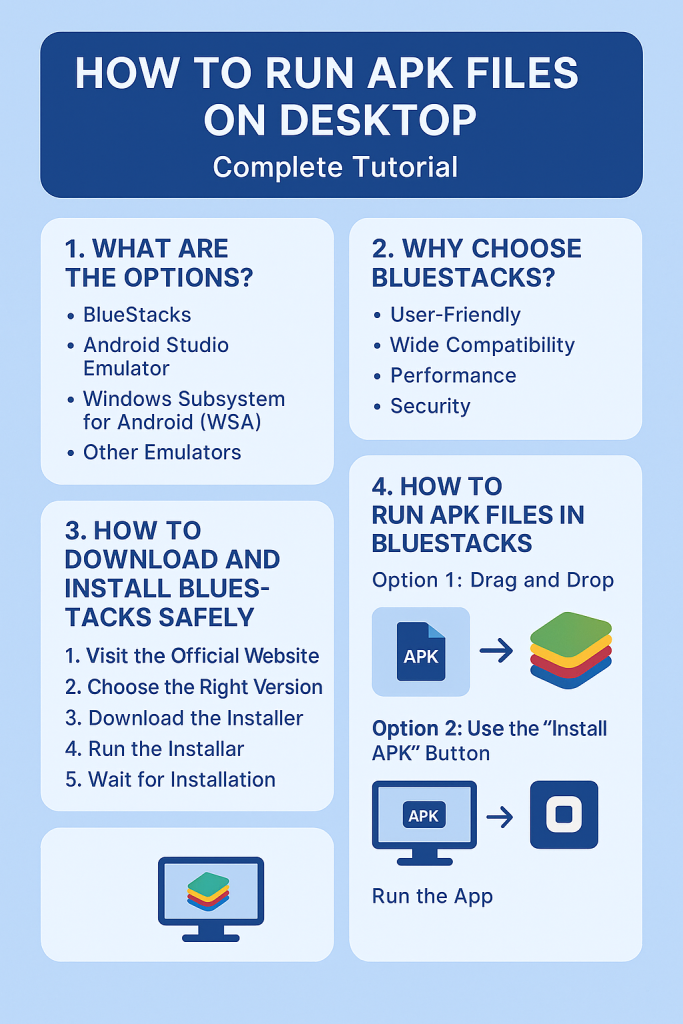
What Are the Options to Run APK Files on Desktop?
Here are the top methods to run Android APK files on a desktop or laptop:
1. BlueStacks (Recommended for general users)
- Best for gamers, casual users, and influencers.
- Easy drag-and-drop APK install.
- Full Play Store support.
- Runs on both Windows and macOS.
2. Android Studio Emulator (For developers and testers)
- Full-fledged emulator for Android development.
- Comes with Android Studio.
- Complex to set up, but great for debugging apps.
3. Windows Subsystem for Android (WSA) (Windows 11 only)
- Native Android support on Windows 11.
- Works via ADB (Android Debug Bridge).
- Needs Developer Mode to install APKs.
4. Other Emulators
- Nox Player – Lightweight, great for games.
- LDPlayer – Good for performance and multi-instance.
- Genymotion – Best for testing on various virtual devices (Free for personal use).
Why Choose BlueStacks?
Imagine you have an Android app—maybe a game, or a social media tool—and you’re wondering, “How can I try this out on my laptop or PC?”
That’s where BlueStacks comes in. It’s like creating a virtual Android phone right on your desktop—but way easier and more fun than it sounds.
Here’s why BlueStacks is the go-to choice for millions of people:
1. Super Easy to Use (No Tech Skills Needed)
You don’t have to be a developer or a techie to use it.
- Just install BlueStacks like any other app on your PC.
- Once it opens, you’ll see an Android-like home screen.
- You can click around, open apps, and install games—just like on your phone.
Even if you’ve never touched an emulator before, you’ll feel right at home.
2. Works with Almost Every Android App
Whether you’re into:
- TikTok or Instagram,
- PUBG or Free Fire,
- or even niche apps from third-party APK sites…
BlueStacks is built to support millions of Android apps and games, so chances are your favorite one works right out of the box.
3. Optimized for Speed and Performance
Let’s face it—some emulators are slow or laggy. But BlueStacks is tuned for performance.
- You can tell it how much CPU or RAM to use (don’t worry—it gives you default settings too).
- On a decent machine, games and apps feel fast and smooth.
- It even has features like frame rate boost and key mapping for gaming!
So even if you’re multitasking or using heavy apps, it still runs well.
4. Safe and Regularly Updated
BlueStacks is not some shady tool from the corners of the internet.
- It’s backed by a well-known company.
- It gets regular updates to fix bugs and improve security.
- Over 500 million users trust it worldwide—including students, gamers, and business users.
So you don’t have to worry about malware or sketchy behavior if you’re using the official version.
5. Play Store Built-In
Here’s something cool: you can log into your Google account inside BlueStacks.
- This means you can open the Google Play Store, search for any app, and install it.
- It’s just like using your Android phone, but on a bigger screen.
You don’t even need APK files unless you want to install something outside the Play Store.
6. Drag & Drop APK Installation
Have an APK file you got from a website or your developer friend?
Just drag the file into BlueStacks—and boom—it installs in seconds.
No confusing commands or setup. It’s literally as easy as drag-and-drop.
How to Safely Download and Install BlueStacks on Your Desktop
Step 1: Visit the Official Website
Go to: https://www.bluestacks.com
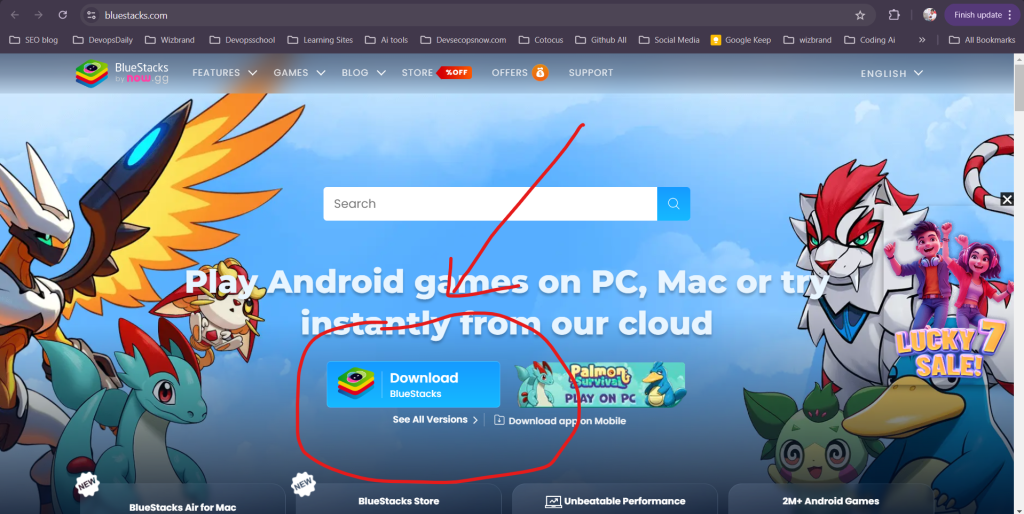
Important Tip:
Don’t download BlueStacks from random websites or YouTube links. Some of those may contain viruses, adware, or pirated versions that mess up your PC. Always stick to the official site.
Step 2: Choose the Right Version for Your Computer
Once you’re on the website, BlueStacks will usually detect your system (Windows or Mac) automatically.
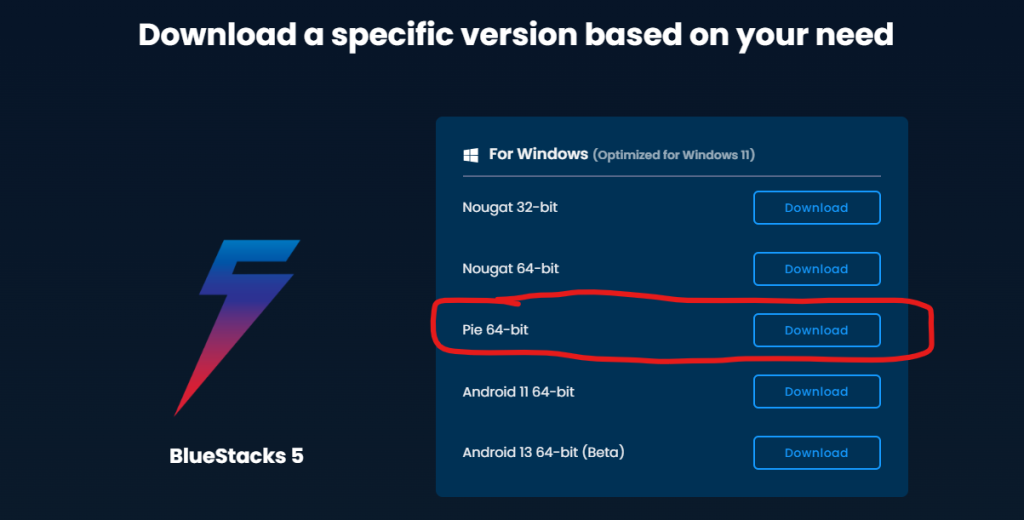
But here’s a quick guide:
- Windows 10 or 11? Get BlueStacks 5 – it’s faster, lighter, and designed for modern PCs.
- Older PC? You can use BlueStacks 4 – it’s slightly heavier but supports older setups.
- MacBook user? There’s a separate version for macOS too—scroll down the homepage to find it.
Just click the version that fits your setup best.
Step 3: Download the Installer File
You’ll see a big, bold “Download BlueStacks” button.
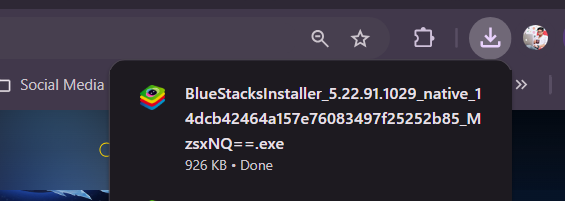
Click it, and your browser will start downloading a file like:
BlueStacksInstaller.exefor WindowsBlueStacksInstaller.dmgfor Mac
Save it somewhere easy to find—like your Desktop or Downloads folder.
Step 4: Run the Installer
Here’s the fun part—getting BlueStacks onto your machine!
- Double-click the installer file you just downloaded.
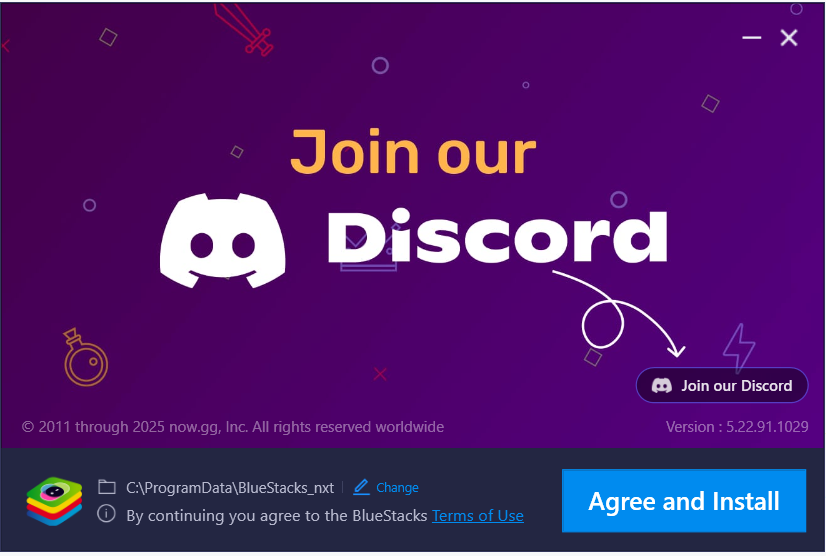
2. Windows or macOS might ask: “Are you sure you want to install this?” → Click Yes or Allow.
3. The installer will open a setup window.
4. Follow the prompts: click Install Now (or Customize if you want to choose an install location).
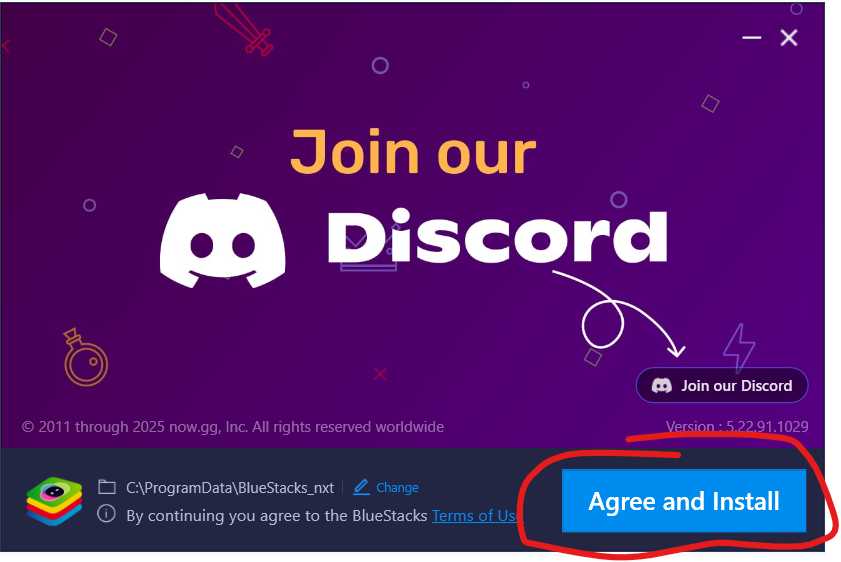
Heads-up:
Sometimes the installer will offer optional extras (like a browser extension or utility). If you’re not interested, just uncheck those boxes. They’re not needed.
Step 5: Let It Install (Be Patient!)
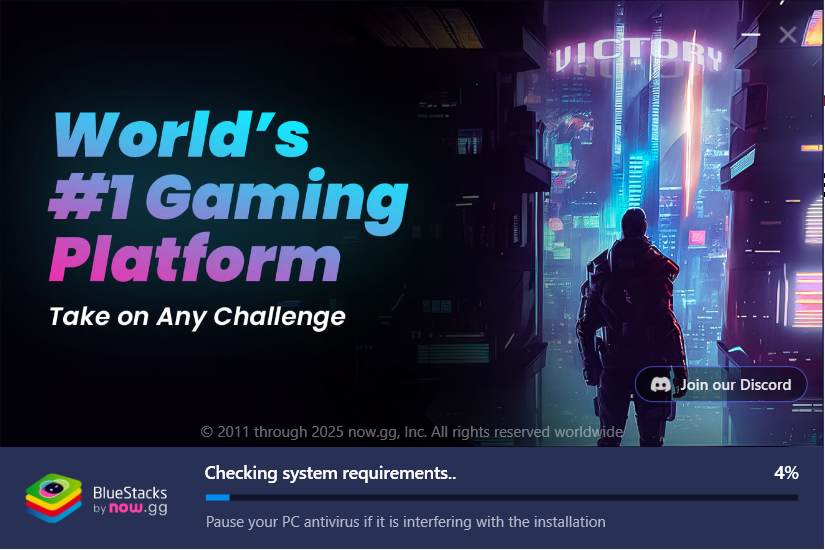
Now, sit back and relax. Depending on your internet speed and system performance:
- The download might take 2–10 minutes
- It will install some Android system files in the background
Once it’s done, BlueStacks will automatically open up—like launching a brand-new Android phone!
How to Run an APK File in BlueStacks – The Easy Way
So, you’ve got BlueStacks installed and you have an APK file (an Android app file). Now you’re probably wondering:
“How do I get this APK to actually run inside BlueStacks?”
Good news — it’s super easy! You have two simple ways to do it. Let’s walk through both.
Option 1: Drag and Drop – The Fastest Way
This is by far the quickest and easiest method.
Here’s what you do:
Step 1:- Open BlueStacks — Just launch it like any other app.
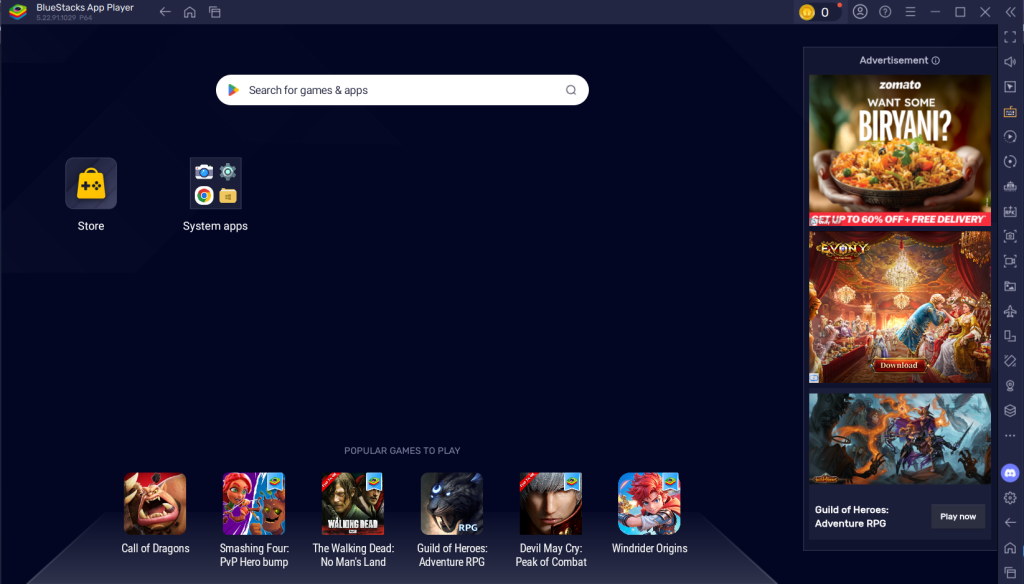
Step 2 :- Find your APK file — This could be in your Downloads folder, Desktop, or wherever you saved it.
Step 3:- Drag the file into BlueStacks — Literally, click and hold the APK file with your mouse and drag it over to the BlueStacks window.
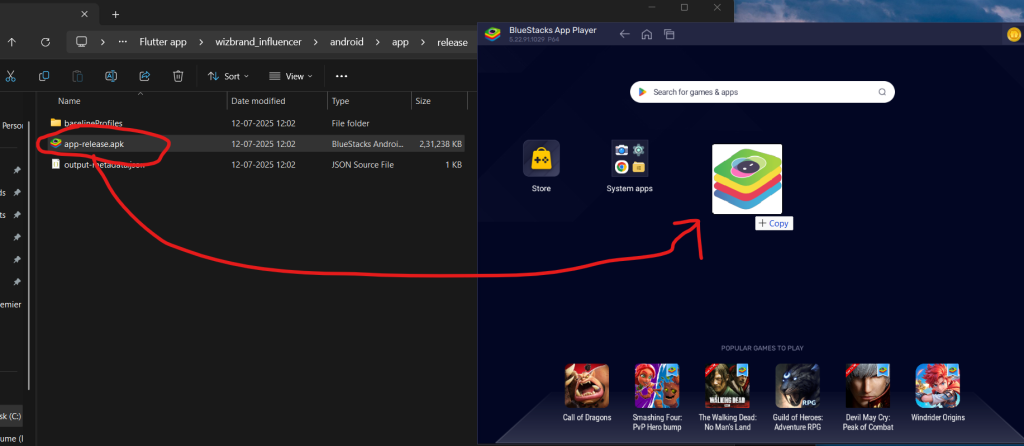
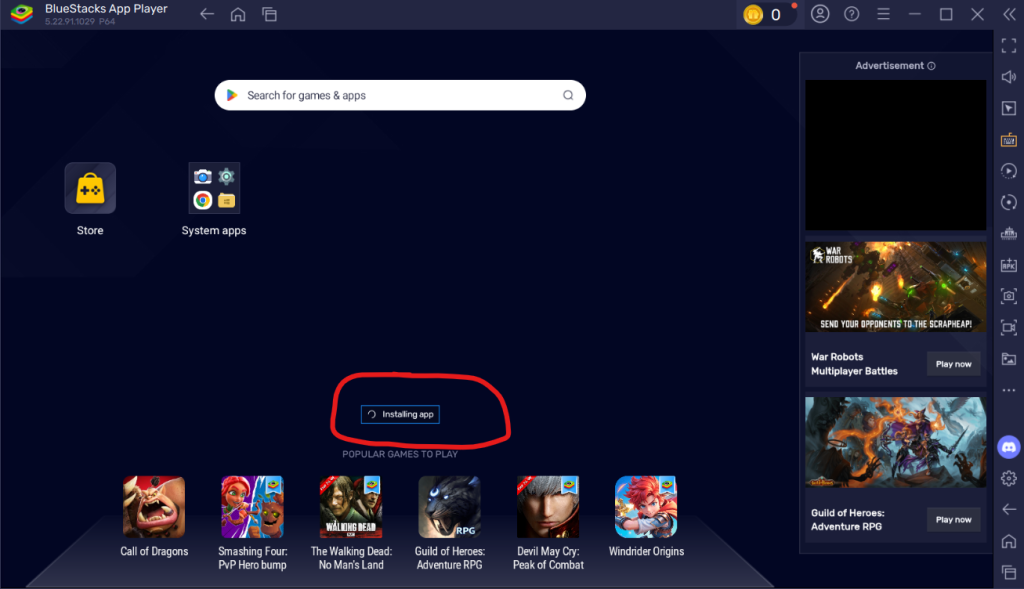
Step 4:- Wait for the installation complete.
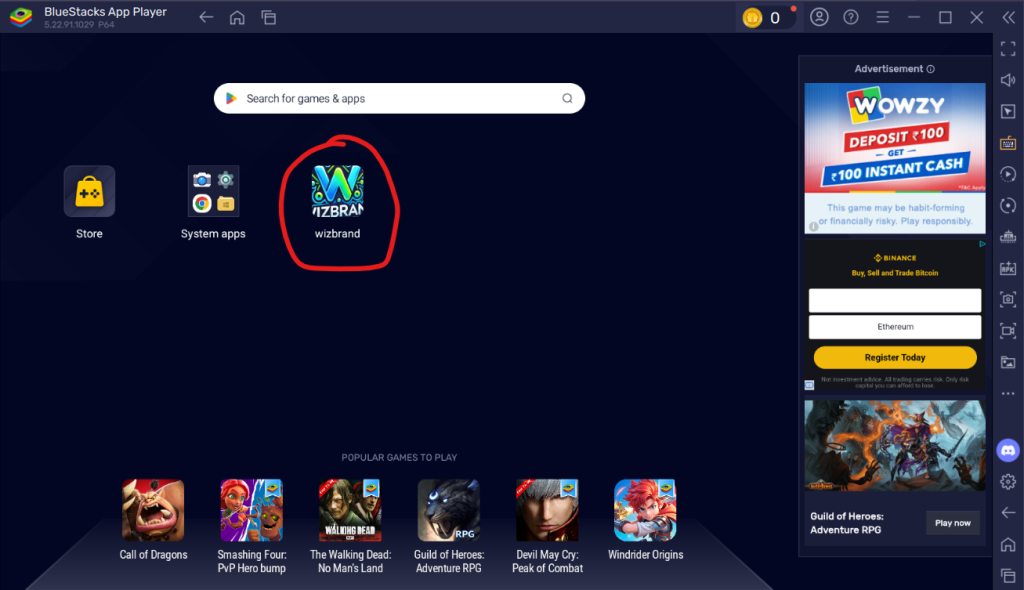
Step 5:- now your app is installed successfully. Double click on the app to run in emulator.
- BlueStacks will say something like “Installing…”
- In just a few seconds, your app will show up on the BlueStacks home screen.
- That’s it! You’re done.
To Open Mobile Like Screen you have to follow the below steps to get it right.
Step 6:- Go to the settings
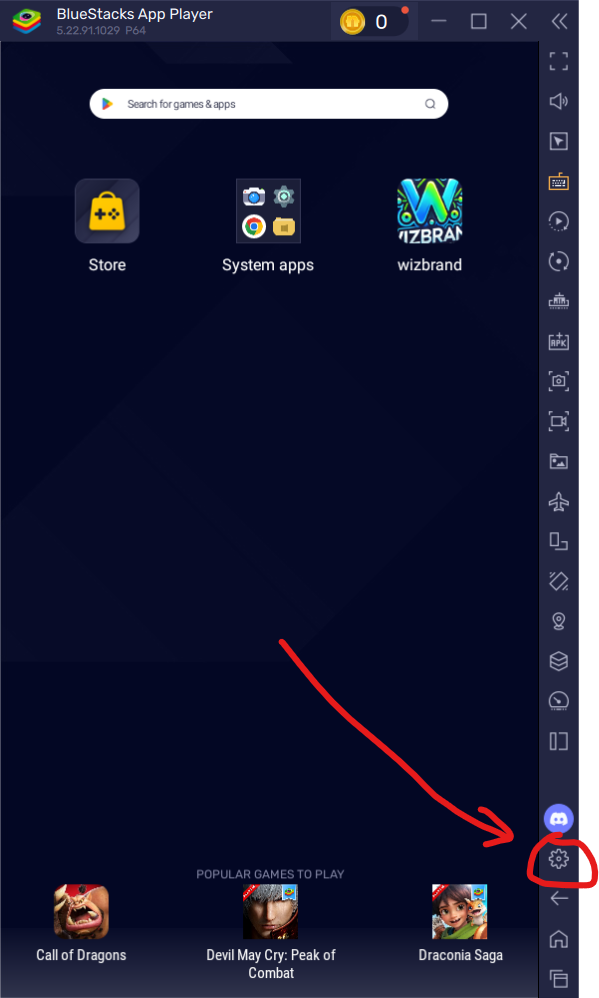
Step 7:- click on Display.
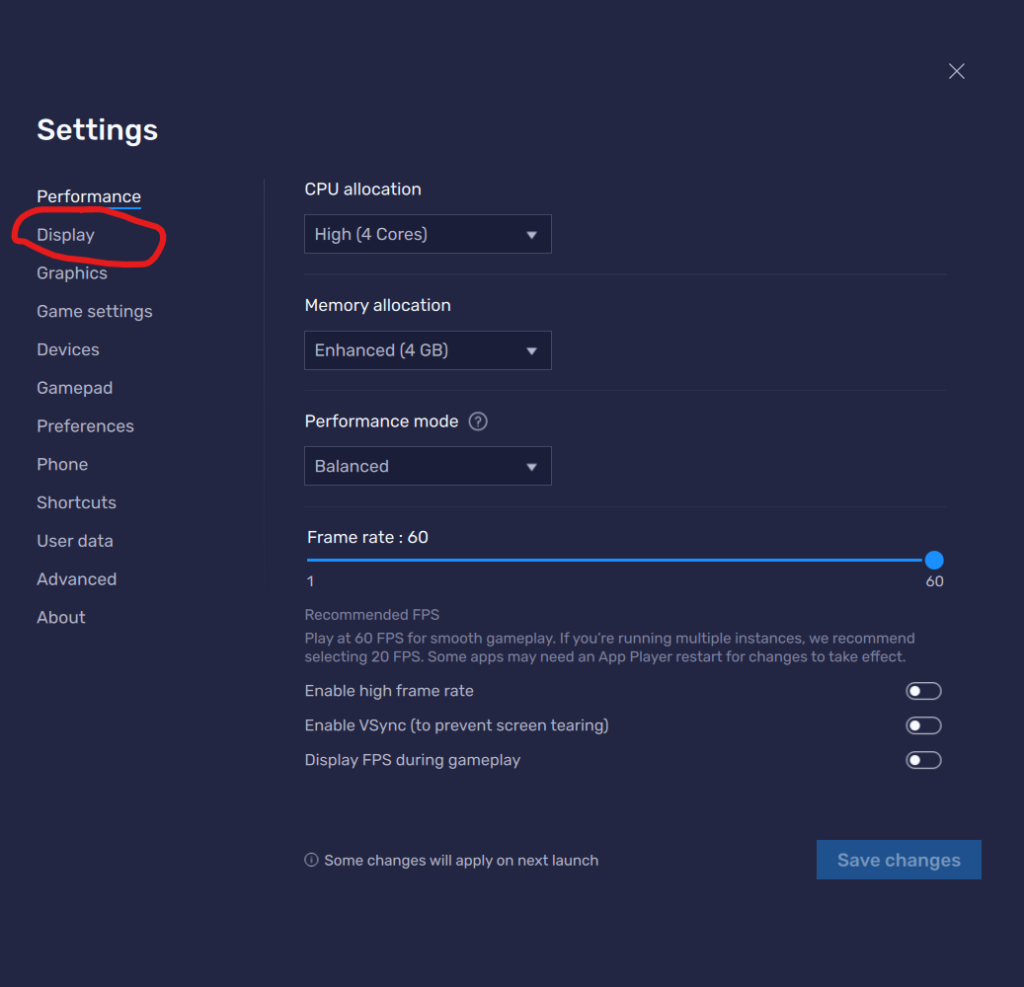
Step 8:- Choose the Portrait Mode and select the 720 X 1280 resolution as shown in the below image
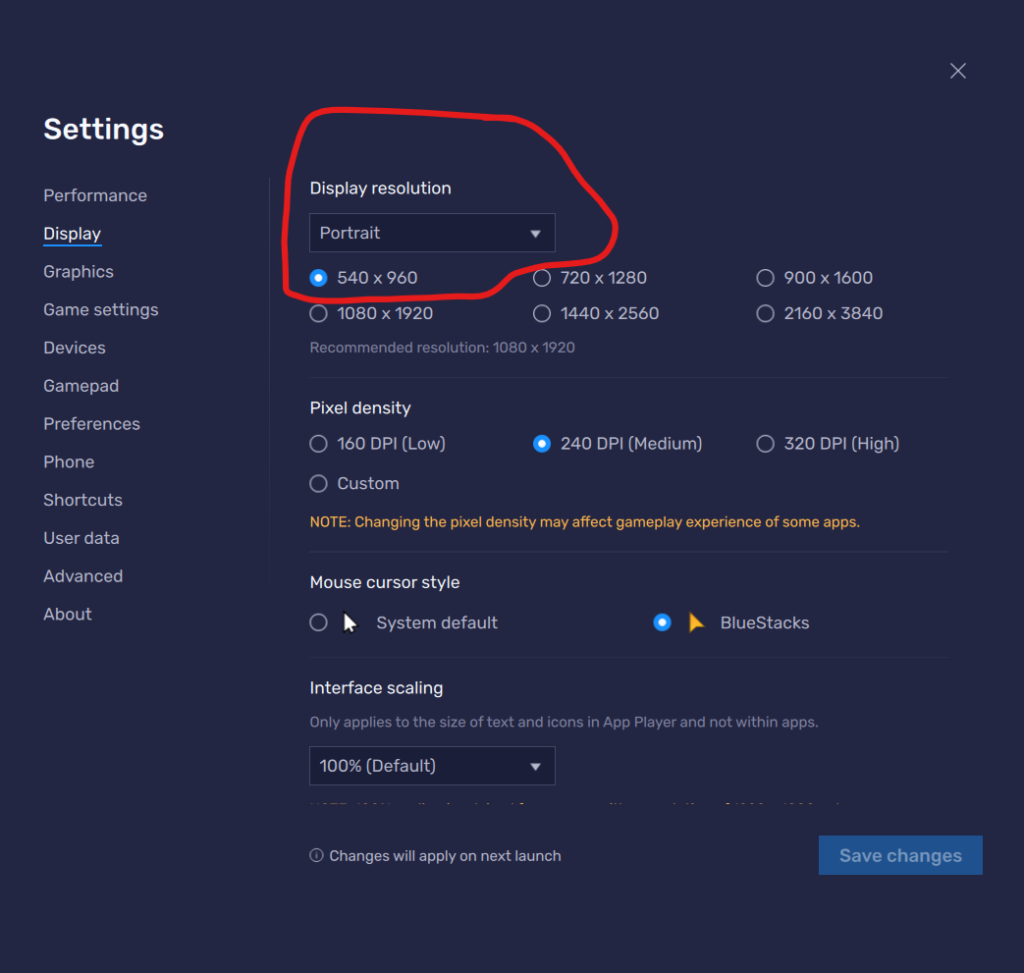
Step 9:- It ask for the restart Allow the bluestack for restart and your screen will looks like a android phone.
Option 2: Use the “Install APK” Button – Great if You Prefer Browsing
If you don’t want to drag things around, no problem. BlueStacks has a button just for this.
Steps:
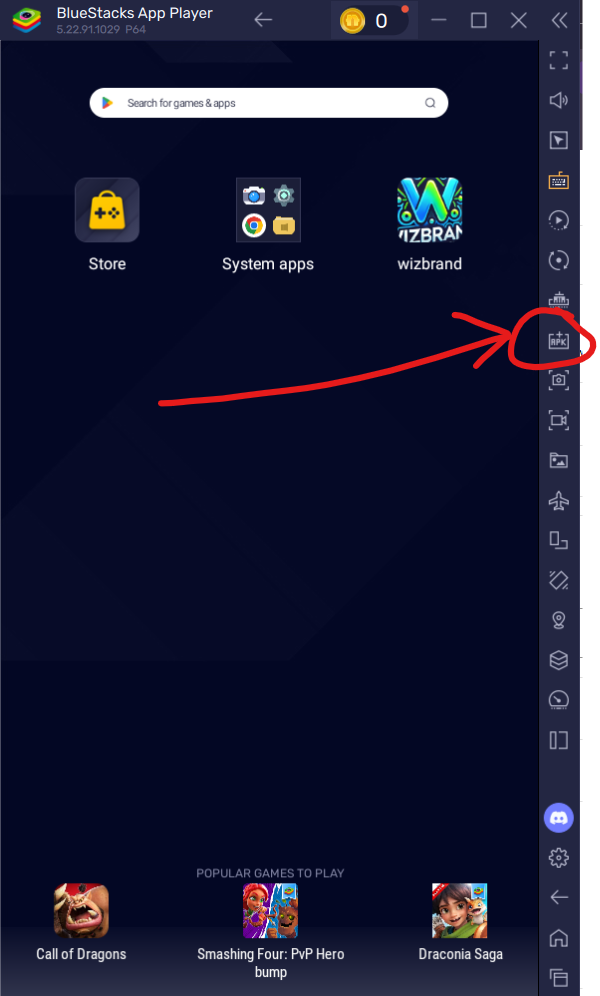
- Open BlueStacks
- On the right side of the screen, look for a small icon that says “Install APK” (it looks like a file with a little Android symbol).
- Click that button, and a file browser will pop up.
- Now, just find and select your APK file on your computer.
After a few seconds, it’ll install the app, and it will appear on your BlueStacks home screen — just like any other app.
Running the App – Like You Would on Your Phone
Once the app is installed, here’s what to do:
- You’ll see the app icon right there in BlueStacks — just like it appears on your phone or tablet.
- Click on it once, and the app will launch.
- Now you can start using it — scroll, swipe, tap — with your mouse or keyboard!
Pro Tip: For many games and apps, BlueStacks will automatically set up key mapping so you can use your keyboard to play or navigate. You can tweak those settings if you want!
