Limited Time Offer!
For Less Than the Cost of a Starbucks Coffee, Access All DevOpsSchool Videos on YouTube Unlimitedly.
Master DevOps, SRE, DevSecOps Skills!
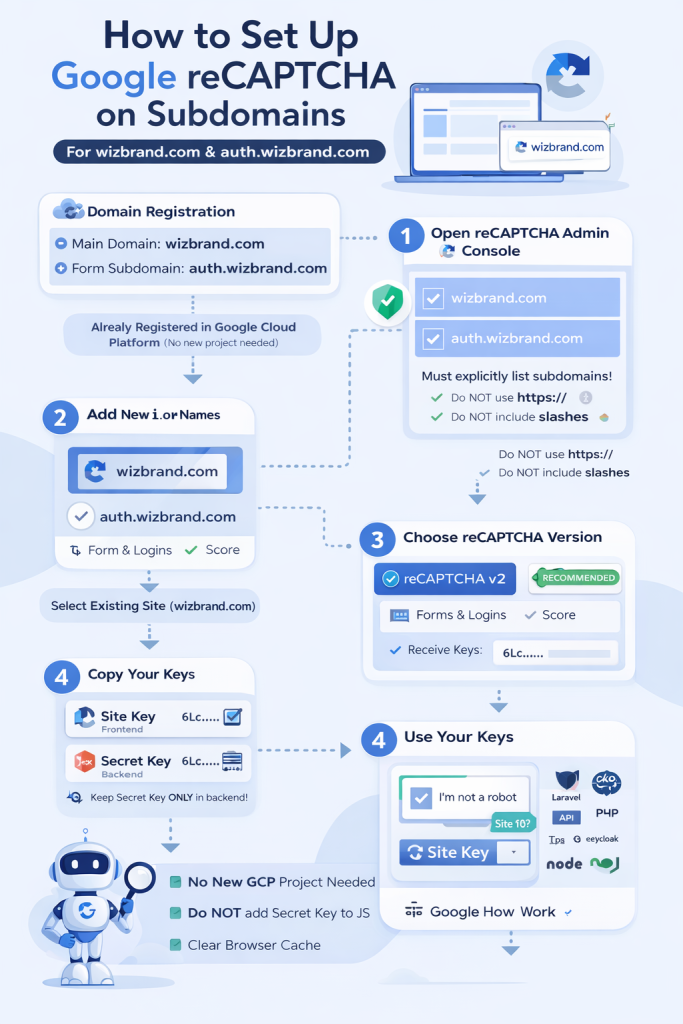
This tutorial explains how to correctly create and configure Google reCAPTCHA when your main website is already registered and you need reCAPTCHA to work on a subdomain, such as an authentication or login service.
It covers:
- When to create a new key vs reuse an existing one
- How Google Cloud Platform (GCP) fits into reCAPTCHA
- How to handle subdomains properly
- Choosing the correct reCAPTCHA version
- Common mistakes and how to avoid them
This guide is written for real production use, especially for login, authentication, and secure forms.
1. Understanding the Problem Scenario
Your situation is:
- Main website:
wizbrand.com - Authentication or form running on:
auth.wizbrand.com - The website is already registered in Google Cloud Platform
- You reached the Google reCAPTCHA “Register a new site” page
- You are unsure:
- Whether a new key is needed
- How to handle subdomains
- Which reCAPTCHA version to select
- Whether a new GCP project is required
This confusion is very common, especially when authentication is moved to a subdomain.
2. Key Concept: Domains vs Google Cloud Projects
Before configuring anything, it is important to understand this clearly.
Google Cloud Project
- A Google Cloud project is only a container
- It does NOT restrict domains
- You can use the same project for multiple sites and subdomains
reCAPTCHA Site Configuration
- This is where domains are actually validated
- If a domain or subdomain is not listed here, reCAPTCHA will fail
This means:
You do not need a new Google Cloud project just because you added a subdomain.
3. When Do You Need a New reCAPTCHA Key?
You need a new key only if:
- You want to change reCAPTCHA version (for example, v3 to v2)
- You want separate analytics or security rules
- You want isolation between different applications
You do NOT need a new key just because:
- You added a subdomain
- You moved login to
auth.wizbrand.com
In most authentication setups, reusing the same key is correct.
4. Choosing the Correct reCAPTCHA Version
Google offers two common options:
reCAPTCHA v3 (Score-Based)
- No checkbox
- Returns a score (0.0 to 1.0)
- Requires backend score logic
- Can block real users unintentionally
- Not ideal for login pages
reCAPTCHA v2 (Challenge-Based)
- Checkbox or challenge
- Clear user interaction
- More reliable for authentication
- Easier to debug and maintain
Recommendation for auth.wizbrand.com
For login, authentication, and security-sensitive forms:
Use reCAPTCHA v2 (Challenge)
This is the safest and most stable option for production auth systems.
5. Creating or Updating reCAPTCHA Configuration (Step-by-Step)
You are already on the correct page:
“Register a new site” in Google reCAPTCHA Admin.
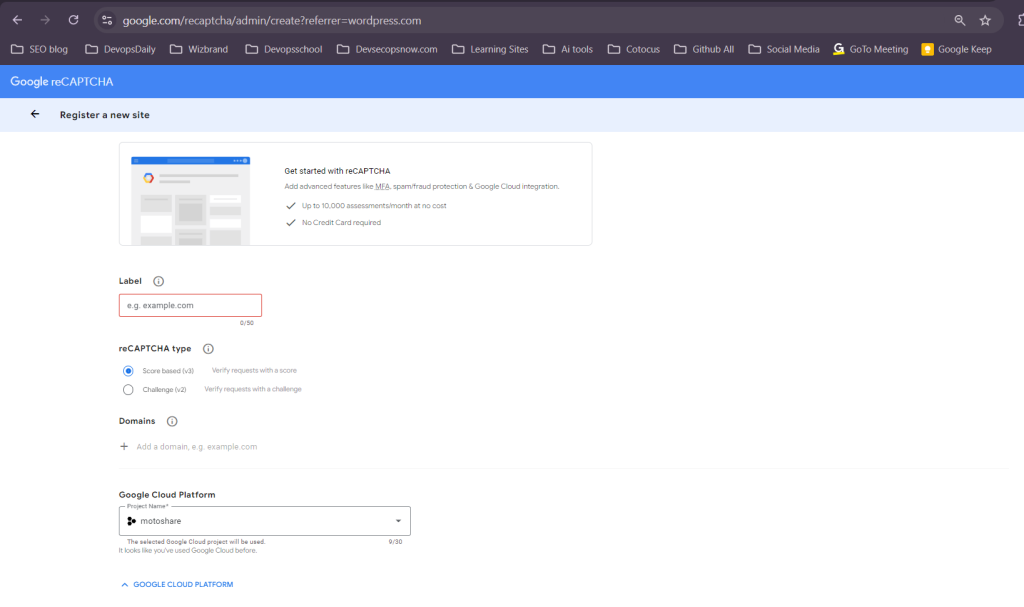
Step 1: Label
This is only for your internal reference.
Recommended examples:
- Wizbrand Auth Login
- Wizbrand reCAPTCHA
This field does not affect functionality.
Step 2: Select reCAPTCHA Type
Choose:
- Challenge (v2)
Avoid score-based v3 for login unless you fully control backend scoring.
Step 3: Add Domains (Most Important Step)
You must explicitly add both the main domain and the subdomain.
Add:
- wizbrand.com
- auth.wizbrand.com
Important rules:
- Do not include
https:// - Do not include trailing slashes
- Subdomains must be added explicitly
If auth.wizbrand.com is missing, reCAPTCHA will fail even if wizbrand.com works.
Step 4: Google Cloud Platform Project
Select your existing project:
- motoshare (or whichever project you already use)
No new project is required.
Step 5: Submit
After submitting, Google will generate:
- Site Key
- Secret Key
6. Understanding Site Key vs Secret Key
This distinction is critical.
Site Key
- Used in frontend (HTML, login page, Keycloak theme)
- Safe to expose publicly
Secret Key
- Used only on backend
- Must never be placed in frontend code
- Must be stored securely (environment variables)
If the secret key leaks, your captcha can be abused.
7. Using reCAPTCHA on auth.wizbrand.com
Frontend Usage
Use the same site key on both:
- wizbrand.com
- auth.wizbrand.com
The domain check is handled automatically by Google.
Backend Verification
No changes are needed when adding a subdomain.
The same secret key works across all allowed domains.
8. Important Caching and Browser Considerations
After adding a new domain:
- Clear browser cache
- Hard refresh the page
- If using CDN, purge cache
- If using server-side rendered templates, clear view cache
Many developers think reCAPTCHA is broken when it is actually cached HTML.
9. Common Mistakes That Cause reCAPTCHA Failure
These are the most frequent real-world issues:
- Adding only wizbrand.com but not auth.wizbrand.com
- Mixing v2 keys with v3 code
- Putting secret key in JavaScript
- Using wrong site key on subdomain
- Forgetting to save domain changes
- CDN caching old markup
- Using localhost without adding it to allowed domains
Avoiding these prevents 90% of captcha issues.
10. Keycloak / Auth System Specific Notes
If auth.wizbrand.com hosts:
- Keycloak
- OAuth login
- SSO gateway
- Central authentication service
Then:
- reCAPTCHA v2 is strongly recommended
- Domain must be explicitly listed
- Same site key can be reused
- Secret key must remain server-side
There is no CORS issue with reCAPTCHA itself.
11. Final Checklist Before Going Live
Before testing in production, verify:
- auth.wizbrand.com is listed in reCAPTCHA domains
- Correct reCAPTCHA version is selected
- Site key is used only in frontend
- Secret key is stored securely
- Cache is cleared
- Login page loads captcha correctly
If all of these are correct, reCAPTCHA will work reliably.
