
Limited Time Offer!
For Less Than the Cost of a Starbucks Coffee, Access All DevOpsSchool Videos on YouTube Unlimitedly.
Master DevOps, SRE, DevSecOps Skills!
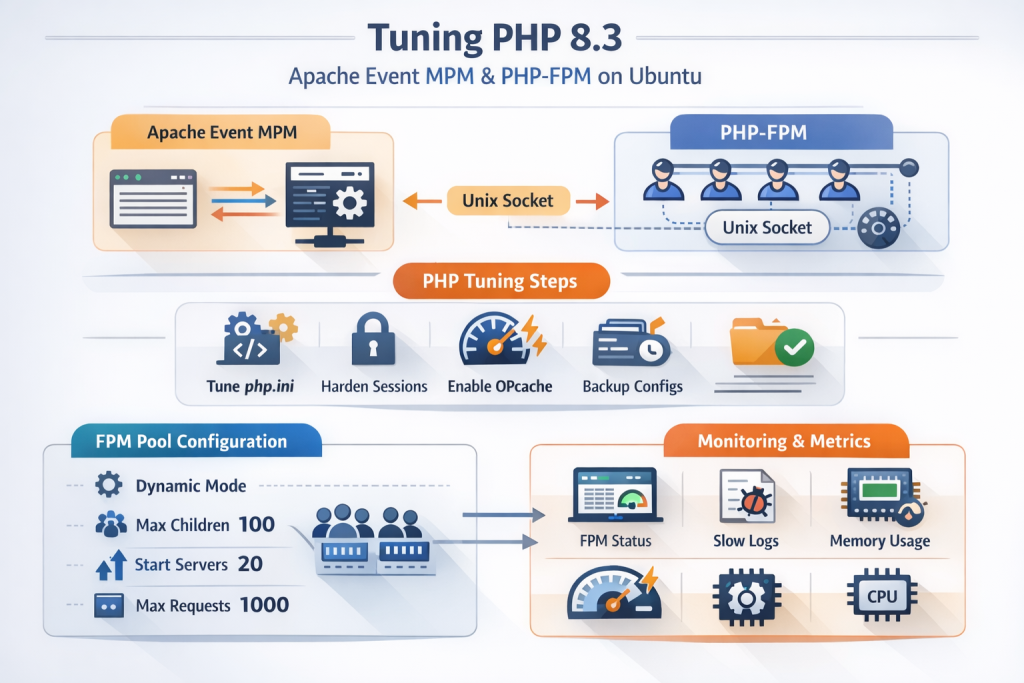
Moving Apache to Event MPM and PHP-FPM is the easy part. The real difference in performance, stability, and operational quality comes after the migration, when you start tuning PHP itself, sizing the FPM pool correctly, enabling OPcache properly, and adding the monitoring hooks that let you validate whether your settings are actually helping. PHP-FPM uses php.ini syntax for both its global configuration and pool files, and the key process-manager directives such as pm.max_children, pm.start_servers, pm.min_spare_servers, and pm.max_spare_servers are all part of the official FPM configuration model. (PHP)
This guide is a practical walkthrough of that post-migration phase for a real Ubuntu server running PHP 8.3 with Apache Event MPM and PHP-FPM. The goal is not to throw random values into php.ini and hope for the best. The goal is to understand what each setting does, how the CLI and FPM configurations differ, how to tune the worker pool for real memory and concurrency, and how to end with a setup that is both production-ready and observable. PHP reads php.ini when it starts; for server modules that means on startup, while CLI reads configuration on every invocation. That distinction is why so many PHP tuning sessions go wrong: people inspect the CLI config and assume the web runtime is using the same file. (PHP)
In the server used for this walkthrough, PHP 8.3.6 was already installed, Apache had already been moved to Event MPM with PHP-FPM, and the next task was to tune PHP 8.3 itself. The final target configuration also included this more aggressive pool profile:
; Increase concurrency based on your 14Gi available RAM
pm = dynamic
pm.max_children = 100
pm.start_servers = 20
pm.min_spare_servers = 10
pm.max_spare_servers = 30
pm.max_requests = 1000

; Fix the log level in /etc/php/8.3/fpm/php-fpm.conf
log_level = notice
That configuration can work very well on a server with substantial free memory, but only if you understand what it is doing and how to verify it. The rest of this tutorial shows exactly how to get there safely.
Why PHP Tuning Matters After Moving to PHP-FPM
Switching from an older Apache + embedded PHP style setup to Apache Event MPM with PHP-FPM changes the shape of your stack. Apache is now primarily handling connection management and request routing, while PHP execution is delegated to a separate FastCGI process manager. Apache’s mod_proxy_fcgi is the standard bridge for this model, and it supports connecting to PHP-FPM over Unix domain sockets, which is the common production pattern on a single host. Apache documents that mod_proxy_fcgi depends on mod_proxy, and Apache 2.4 added Unix domain socket support for proxy connections. (Apache HTTP Server)
This separation is exactly why tuning becomes more important. You now have two independent control planes:
- Apache concurrency and request handling
- PHP-FPM worker management and PHP runtime behavior
If PHP-FPM is under-sized, Apache can accept requests faster than PHP can execute them. If PHP-FPM is over-sized, you can waste large amounts of RAM on idle workers or create memory pressure that hurts the database and operating system. If OPcache is weakly configured, PHP wastes CPU parsing the same scripts repeatedly. If session and error settings are not production-safe, performance can look fine while security and debuggability quietly degrade. PHP’s OPcache exists precisely to avoid repeatedly loading and parsing PHP scripts by storing precompiled bytecode in shared memory. (PHP)
Step 1: Inspect the Current PHP and PHP-FPM State
Before changing anything, confirm what is actually installed and which configuration files are active.
Start with the obvious commands:
php -v
php --ini
php-fpm8.3 -tt
On the test server, the output showed:
- PHP 8.3.6
- CLI config loaded from
/etc/php/8.3/cli/php.ini - FPM test output from
/etc/php/8.3/fpm/php-fpm.conf
That distinction is extremely important. php --ini tells you what the CLI runtime is using. It does not prove what Apache is using through PHP-FPM. PHP documents that configuration is read at startup, and different SAPIs such as CLI and CGI/FastCGI can have different config contexts. FPM also has its own global config file and pool config files using php.ini syntax. (PHP)
A lot of developers make this mistake: they edit /etc/php/8.3/cli/php.ini, run php -i, and assume the website changed. It did not. The website is using FPM. That means the files that matter most are usually these:
/etc/php/8.3/fpm/php.ini
/etc/php/8.3/fpm/php-fpm.conf
/etc/php/8.3/fpm/pool.d/www.conf
If you want to see the effective FPM-side runtime settings, use FPM itself:
php-fpm8.3 -i | less
That is far more reliable for web-runtime tuning than only looking at CLI output.
Step 2: Back Up the FPM Configuration Before Editing
Never tune production PHP directly without a rollback path. Before editing anything, create timestamped backups:
sudo cp /etc/php/8.3/fpm/php.ini /etc/php/8.3/fpm/php.ini.bak.$(date +%F-%H%M)
sudo cp /etc/php/8.3/fpm/php-fpm.conf /etc/php/8.3/fpm/php-fpm.conf.bak.$(date +%F-%H%M)
sudo cp /etc/php/8.3/fpm/pool.d/www.conf /etc/php/8.3/fpm/pool.d/www.conf.bak.$(date +%F-%H%M)
This step is simple, but it is the difference between calm tuning and emergency debugging.
Step 3: Fix the Global FPM Configuration First
On the first pass, the FPM config test showed an odd line:
log_level = unknown value
The rest of the configuration still tested successfully, but this was a clear sign that the global FPM config needed correction. According to the official PHP-FPM configuration reference, valid log_level values are alert, error, warning, notice, and debug. (PHP)
Open the global FPM config:
sudo nano /etc/php/8.3/fpm/php-fpm.conf
Set:
log_level = notice
That small change matters because it keeps logging predictable without making the logs excessively noisy. After the correction, php-fpm8.3 -tt showed:
log_level = NOTICE
which confirmed the issue was fixed.
If you ever see strange behavior like unknown value again, search for duplicates and hidden characters:
grep -Rni --color=auto '^[[:space:];#]*log_level' /etc/php/8.3/fpm
sed -n '/log_level/p' /etc/php/8.3/fpm/php-fpm.conf | cat -A
That catches the annoying cases where a value looks correct in a text editor but includes an invisible character or a duplicate setting in an included file.
Step 4: Tune the FPM php.ini for Production
Now move to the actual PHP runtime configuration used by the web server:
sudo nano /etc/php/8.3/fpm/php.ini
The goal here is not to make PHP “fast” by setting every limit sky-high. The goal is to create a sane production baseline.
A good starting point looks like this:
expose_php = Off
display_errors = Off
display_startup_errors = Off
log_errors = On

memory_limit = 256M
max_execution_time = 60
max_input_time = 60

upload_max_filesize = 32M
post_max_size = 32M
max_file_uploads = 20
max_input_vars = 2000

cgi.fix_pathinfo = 0

realpath_cache_size = 4096K
realpath_cache_ttl = 600
These are not random values.
memory_limit is the maximum amount of memory a script may allocate. upload_max_filesize controls individual upload size, while post_max_size caps the whole POST body and should be larger than or equal to the upload limit depending on your application. cgi.fix_pathinfo is particularly important in CGI/FastCGI contexts; PHP documents that it is enabled by default and that setting it changes how PATH_INFO and related path handling behave. realpath_cache_size and realpath_cache_ttl influence path resolution caching, which matters when PHP repeatedly opens many files in a framework-heavy application. (PHP)
The most immediately useful security/performance decisions in that block are these:
expose_php = Offhides unnecessary PHP version exposuredisplay_errors = Offprevents end users from seeing stack traces or warningslog_errors = Onensures problems still make it to the logscgi.fix_pathinfo = 0keeps FastCGI path handling deliberate and predictable
This combination gives you cleaner production behavior without reducing observability.
Step 5: Harden PHP Session Settings
Many PHP deployments spend time tuning worker counts and forget that session behavior is part of application security. PHP’s session security documentation explicitly recommends hardening session-related INI settings and emphasizes that secure session management is central to web security. (PHP)
Add these to the same FPM php.ini:
session.use_only_cookies = 1
session.use_strict_mode = 1
session.cookie_httponly = 1
session.cookie_secure = 1
session.cookie_samesite = Lax
These are strong defaults for a production HTTPS site:
session.use_only_cookies = 1avoids session IDs in URLssession.use_strict_mode = 1helps prevent acceptance of uninitialized session IDssession.cookie_httponly = 1prevents JavaScript access to the session cookie in normal browser behaviorsession.cookie_secure = 1ensures the cookie is only sent over HTTPSsession.cookie_samesite = Laxis a good balance for many apps
Do not set session.cookie_secure = 1 unless the site is actually served over HTTPS end to end.
Step 6: Enable and Tune OPcache Properly
One of the biggest wins in a PHP-FPM setup is a good OPcache configuration. OPcache improves performance by storing precompiled PHP bytecode in shared memory, which removes repeated parse and compile overhead on each request. PHP’s manual is very clear about this, and it is one of the first places to look when tuning a production PHP application. (PHP)
In /etc/php/8.3/fpm/php.ini, add or verify:
opcache.enable=1
opcache.enable_cli=0
opcache.memory_consumption=192
opcache.interned_strings_buffer=16
opcache.max_accelerated_files=50000
opcache.max_wasted_percentage=10
opcache.use_cwd=1
opcache.save_comments=1
opcache.validate_timestamps=1
opcache.revalidate_freq=2
Here is what these settings achieve in practice:
opcache.enable=1turns OPcache onopcache.enable_cli=0avoids spending memory on CLI execution unless you specifically need itopcache.memory_consumption=192gives the shared cache room to growopcache.max_accelerated_files=50000is appropriate for modern frameworks with many filesopcache.save_comments=1preserves comments and metadata used by frameworks and librariesopcache.validate_timestamps=1lets PHP check whether files changedopcache.revalidate_freq=2means it does not check on every single request
That last pair deserves special attention. PHP documents that opcache.validate_timestamps controls whether changed scripts are detected, and opcache.revalidate_freq controls how often timestamp validation happens. If you later set opcache.validate_timestamps=0, changed files will not be detected automatically until you restart or reset OPcache. That can be a perfectly valid production choice for carefully managed deployments, but it should never be set casually on a server where developers still edit code live. (PHP)
Step 7: Understand PHP-FPM Pool Modes Before Tuning Worker Counts
Now it is time to tune the real heart of PHP-FPM: the process manager.
PHP-FPM supports multiple process manager modes, and in most web application deployments you will use dynamic. In dynamic mode, PHP-FPM uses pm.max_children, pm.start_servers, pm.min_spare_servers, and pm.max_spare_servers to decide how many worker processes to create and keep available. Those directives are officially documented as the core process-management settings for dynamic pools. (PHP)
Open the pool file:
sudo nano /etc/php/8.3/fpm/pool.d/www.conf
A conservative production baseline looks like this:
[www]
user = www-data
group = www-data

listen = /run/php/php8.3-fpm.sock
listen.owner = www-data
listen.group = www-data
listen.mode = 0660

pm = dynamic
pm.max_children = 30
pm.start_servers = 4
pm.min_spare_servers = 2
pm.max_spare_servers = 6
pm.max_requests = 500

request_terminate_timeout = 120s
request_terminate_timeout_track_finished = yes

request_slowlog_timeout = 5s
slowlog = /var/log/php8.3-fpm/www-slow.log

pm.status_path = /fpm-status
ping.path = /fpm-ping
ping.response = pong

catch_workers_output = yes
clear_env = yes
security.limit_extensions = .php .phar
There is a lot happening here, but every line has a purpose.
listen = /run/php/php8.3-fpm.sock tells Apache to connect over a Unix socket. listen.owner, listen.group, and listen.mode ensure Apache has permission to use the socket. pm.max_children is the most important concurrency limit: it is the maximum number of PHP worker processes in the pool. pm.max_requests recycles workers after a fixed number of requests, which PHP specifically documents as useful for working around memory leaks in third-party libraries and extensions. request_slowlog_timeout and slowlog help you capture slow request traces. request_terminate_timeout kills genuinely stuck requests. pm.status_path and ping.path expose health and status endpoints. (PHP)
Step 8: Create the Slow Log File
If you enable slow logging, create the directory and file cleanly:
sudo mkdir -p /var/log/php8.3-fpm
sudo touch /var/log/php8.3-fpm/www-slow.log
sudo chown www-data:www-data /var/log/php8.3-fpm/www-slow.log
This gives you a place to inspect slow request traces later without guessing whether the path exists.
Step 9: Validate and Reload PHP-FPM Safely
Every time you edit FPM config, validate before reloading:
sudo php-fpm8.3 -tt
sudo systemctl reload php8.3-fpm
sudo systemctl status php8.3-fpm --no-pager
The -tt test is your friend. It lets you see the interpreted configuration and catches obvious syntax problems before they break the service.
Once the configuration in this walkthrough was corrected, the test output showed a healthy global and pool section, including:
log_level = NOTICEpm = dynamicpm.max_children = 100pm.start_servers = 20pm.min_spare_servers = 10pm.max_spare_servers = 30pm.max_requests = 1000pm.status_path = /fpm-statusping.path = /fpm-ping
At that point, the configuration was not just syntactically valid. It was operationally coherent.
Step 10: Size pm.max_children Using Real Memory, Not Guesswork
This is the part that separates production tuning from cargo-cult copying.
The sample server in this walkthrough reported roughly:
15 GiBtotal memory14 GiBavailable- average PHP-FPM RSS around
17.5 MBwhile mostly idle
Those numbers are useful, but idle RSS is not enough. A Laravel application under real load can consume far more memory per worker than it does while sitting idle. That is why you should treat early memory numbers as staging data, not final truth.
A practical sizing formula is:
pm.max_children = RAM reserved for PHP-FPM / average real worker RSS under load
You can measure current worker memory like this:
ps --no-headers -o rss,cmd -C php-fpm8.3 | sort -nr | head
ps --no-headers -o rss -C php-fpm8.3 | awk '{sum+=$1; n++} END {if(n>0) print "avg_rss_mb=" sum/n/1024; else print "no php-fpm workers"}'
In the example server, the average idle number around 17 MB made a higher worker ceiling look possible. That is what eventually led to the more aggressive tuning profile:
; Increase concurrency based on your 14Gi available RAM
pm = dynamic
pm.max_children = 100
pm.start_servers = 20
pm.min_spare_servers = 10
pm.max_spare_servers = 30
pm.max_requests = 1000

; Fix the log level in /etc/php/8.3/fpm/php-fpm.conf
log_level = notice
This profile is valid, and on a 15 GiB machine with strong available memory it may work very well. But it is not a universal default. It is an intentionally high-concurrency profile. Use it when the workload justifies keeping many workers warm and when you have enough headroom for the database, Apache, the operating system, and any other services like Redis or Meilisearch.
If you want a more balanced starting point for moderate traffic, use this instead:
pm = dynamic
pm.max_children = 60
pm.start_servers = 8
pm.min_spare_servers = 4
pm.max_spare_servers = 12
pm.max_requests = 500
That profile wastes less RAM on idle workers and is often a better fit for medium-traffic applications.
Step 11: Verify the FPM Runtime, Not Just CLI
After editing php.ini, confirm the FPM runtime is actually using your new values:
php-fpm8.3 -i | egrep 'Loaded Configuration File|memory_limit|post_max_size|upload_max_filesize|max_execution_time|cgi.fix_pathinfo|opcache.enable|opcache.memory_consumption|opcache.validate_timestamps'
PHP’s phpinfo() output is also a standard debugging tool for inspecting configuration, though it should never be left publicly exposed in production. PHP documents phpinfo() as a common way to inspect configuration and environment state. (PHP)
If you use a temporary test file, remove it immediately after testing.
Step 12: Expose /fpm-ping and /fpm-status Safely Through Apache
Enabling status endpoints in FPM is only half the job. You also need Apache to forward those requests to the FPM socket.
Apache’s mod_proxy_fcgi provides the FastCGI bridge, and it can proxy requests over a Unix socket using the proxy:unix:/path.sock|fcgi://localhost/ format. mod_proxy_fcgi depends on mod_proxy, and Unix domain socket support is part of Apache 2.4’s proxy stack. (Apache HTTP Server)
Inside the relevant Apache virtual host, add:
<LocationMatch "^/(fpm-status|fpm-ping)$">
    Require local
    SetHandler "proxy:unix:/run/php/php8.3-fpm.sock|fcgi://localhost/"
</LocationMatch>
Then test and reload Apache:
sudo apachectl configtest
sudo systemctl reload apache2
Now verify locally:
curl http://127.0.0.1/fpm-ping
curl http://127.0.0.1/fpm-status
You should see:
pongfor/fpm-ping- pool status information for
/fpm-status
The Require local restriction is important. These endpoints are operational tooling, not public URLs.
Step 13: Watch the Right Logs and Metrics
Once the service is up, the next job is not “set and forget.” The next job is observation.
Useful commands include:
sudo journalctl -u php8.3-fpm -n 100 --no-pager
sudo tail -f /var/log/php8.3-fpm.log
sudo tail -f /var/log/php8.3-fpm/www-slow.log
free -h
ps --no-headers -o rss,cmd -C php-fpm8.3 | sort -nr | head
curl http://127.0.0.1/fpm-status
Watch for patterns like these:
- active processes frequently climbing near
pm.max_children - slow log entries increasing
- large jumps in worker RSS during real traffic
- many spare workers staying idle all the time
- swapping or memory pressure on the server
If the pool never comes close to using its spare workers, you may be over-provisioned. If the active process count repeatedly hits the worker ceiling, you may be under-provisioned or bottlenecked by the application or database.
Step 14: Common Mistakes During PHP-FPM Tuning
The first common mistake is confusing CLI config with FPM config. The second is copying a huge worker count without checking memory. The third is enabling aggressive settings like opcache.validate_timestamps=0 on a server where code is still edited live. The fourth is exposing fpm-status publicly. The fifth is focusing only on pm.max_children and ignoring the startup and spare worker settings, which can quietly burn RAM without improving throughput.
Another subtle mistake is assuming that high available RAM automatically means you should set huge values everywhere. A PHP-FPM pool exists inside a larger system. Apache, MySQL or MariaDB, Redis, search services, cron jobs, and even the filesystem cache need memory too. A worker ceiling of 100 may be right for one workload and excessive for another.
Step 15: A Clean Final Configuration Example
Here is a solid production-ready example based on the final tuning direction of this walkthrough.
/etc/php/8.3/fpm/php-fpm.conf
[global]
pid = /run/php/php8.3-fpm.pid
error_log = /var/log/php8.3-fpm.log
log_level = notice
/etc/php/8.3/fpm/php.ini
expose_php = Off
display_errors = Off
display_startup_errors = Off
log_errors = On

memory_limit = 256M
max_execution_time = 60
max_input_time = 60

upload_max_filesize = 32M
post_max_size = 32M
max_file_uploads = 20
max_input_vars = 2000

cgi.fix_pathinfo = 0

realpath_cache_size = 4096K
realpath_cache_ttl = 600

session.use_only_cookies = 1
session.use_strict_mode = 1
session.cookie_httponly = 1
session.cookie_secure = 1
session.cookie_samesite = Lax

opcache.enable=1
opcache.enable_cli=0
opcache.memory_consumption=192
opcache.interned_strings_buffer=16
opcache.max_accelerated_files=50000
opcache.max_wasted_percentage=10
opcache.use_cwd=1
opcache.save_comments=1
opcache.validate_timestamps=1
opcache.revalidate_freq=2
/etc/php/8.3/fpm/pool.d/www.conf
[www]
user = www-data
group = www-data

listen = /run/php/php8.3-fpm.sock
listen.owner = www-data
listen.group = www-data
listen.mode = 0660

; Increase concurrency based on your 14Gi available RAM
pm = dynamic
pm.max_children = 100
pm.start_servers = 20
pm.min_spare_servers = 10
pm.max_spare_servers = 30
pm.max_requests = 1000

request_terminate_timeout = 120s
request_terminate_timeout_track_finished = yes

request_slowlog_timeout = 5s
slowlog = /var/log/php8.3-fpm/www-slow.log

pm.status_path = /fpm-status
ping.path = /fpm-ping
ping.response = pong

catch_workers_output = yes
clear_env = yes
security.limit_extensions = .php .phar
Apply the configuration with:
sudo php-fpm8.3 -tt
sudo systemctl reload php8.3-fpm
sudo systemctl status php8.3-fpm --no-pager
Step 16: When to Use the Aggressive 100-Worker Profile
The aggressive profile in this article is not wrong. It is simply workload-specific.
Use it when:
- the server has large available RAM
- PHP worker RSS remains moderate under load
- the site receives enough traffic to justify many warm workers
- you want fast pickup under bursty traffic without waiting for worker creation
- the database and other services still have comfortable memory headroom
Reduce it when:
- most workers stay idle
- the app is moderate traffic rather than high traffic
- other services on the server need more memory
- real worker RSS grows sharply during heavy requests
- you see no practical benefit from so many startup and spare processes
That is why production tuning is always two parts: configuration and measurement.
Conclusion
A PHP-FPM migration is not finished when Apache starts returning pages again. The real work starts after that: tuning the FPM runtime, securing sessions, enabling OPcache, fixing global logging, sizing worker pools sensibly, exposing status endpoints safely, and measuring what the server actually does under real load.
In this walkthrough, the stack moved from a default-like FPM pool with a tiny worker ceiling to a tuned PHP 8.3 setup with production-safe php.ini values, OPcache enabled, slow logging configured, health endpoints ready, and a high-concurrency FPM pool profile built around available server memory. Along the way, the most important lessons were simple:
- inspect the FPM runtime, not just CLI
- validate config before reload
- tune
pm.max_childrenwith real memory data - treat OPcache and session settings as first-class production concerns
- expose monitoring endpoints only locally
- prefer measured tuning over copied numbers





0 Comments
Most Voted