
Limited Time Offer!
For Less Than the Cost of a Starbucks Coffee, Access All DevOpsSchool Videos on YouTube Unlimitedly.
Master DevOps, SRE, DevSecOps Skills!
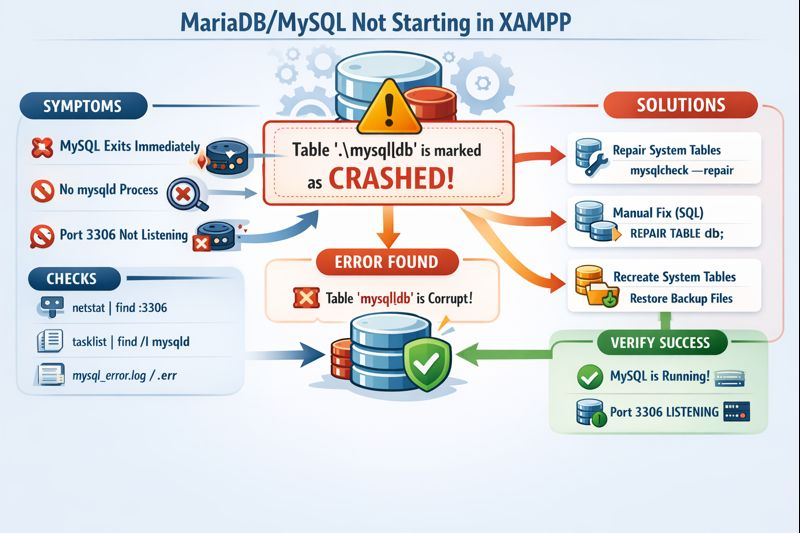
Error: Table '.\mysql\db' is marked as crashed and last (automatic?) repair failed
1. Introduction
One of the most frustrating issues developers face while working with XAMPP on Windows is when MySQL/MariaDB refuses to start, even though the logs initially look normal.
In this case, MariaDB:
- Appears to start
- Initializes InnoDB correctly
- Then silently exits
- Does not listen on port
3306 - Shows no running
mysqldprocess
Eventually, when started in console mode, it fails with a fatal privilege table error.
This tutorial explains:
- How to diagnose the issue correctly
- Why the problem happens
- How to safely repair the MySQL system tables
- How to verify the fix
- What to do if repair fails
2. Initial Symptoms Observed
You experienced the following symptoms:
- XAMPP MySQL shows “Starting” and then stops
netstat -ano | findstr :3306shows no outputtasklist | findstr mysqldshows no running processmysql_error.logshows only startup messages, no shutdown reason- MySQL is not accessible from phpMyAdmin or applications
These symptoms usually indicate MySQL is crashing after startup, not failing to start.
3. First Diagnostic Checks
3.1 Check if MySQL is listening on port 3306
Command:
netstat -ano | findstr :3306
Result:
- No output → MySQL is not running or not bound to the port
3.2 Check if mysqld process exists
Command:
tasklist | findstr /I mysqld
Result:
- No output →
mysqld.exeis not running
This confirms MySQL is crashing or exiting.
4. Checking the MySQL Error Log
File location:
C:\xampp\mysql\data\mysql_error.log
Command used:
powershell -Command "Get-Content 'C:\xampp\mysql\data\mysql_error.log' -Tail 120"
Observation:
- Only startup logs
- No explicit crash reason
- Indicates the real error is occurring before logging fully initializes
At this stage, the correct next step is to run MySQL manually in console mode.
5. Running MySQL in Console Mode (Critical Step)
This step reveals the actual root cause.
Command:
cd C:\xampp\mysql\bin
mysqld --console
Actual Error Found:
[ERROR] mysqld: Table '.\mysql\db' is marked as crashed and last (automatic?) repair failed
[ERROR] Fatal error: Can't open and lock privilege tables
[ERROR] Aborting
6. Understanding the Root Cause
What is mysql\db?
- It is a system privilege table
- Stored inside:
C:\xampp\mysql\data\mysql\ - Controls:
- Database access
- User permissions
- Host-level grants
Why this causes MySQL to stop
MariaDB cannot start without valid privilege tables.
If mysql\db is corrupted:
- Authentication cannot initialize
- Server aborts immediately
- Port is never opened
- MySQL exits silently
This is not a user database issue — it is a system table corruption.
7. Recommended Fix (Safe and Correct)
Method 1: Repair System Tables Using mysqlcheck
This method is safe, non-destructive, and should always be tried first.
Step 1: Stop MySQL Completely
From XAMPP Control Panel:
- Click Stop on MySQL
Verify:
tasklist | findstr /I mysqld
No output means it is fully stopped.
Step 2: Start MySQL Without Privilege Checks
This allows MySQL to start even if system tables are broken.
Run Command Prompt as Administrator:
cd C:\xampp\mysql\bin
mysqld --skip-grant-tables --skip-networking --console
Important notes:
- Keep this window open
- MySQL will appear to “hang” — this is normal
- Networking is disabled for safety
Step 3: Repair the MySQL System Tables
Open another Command Prompt as Administrator.
Run:
cd C:\xampp\mysql\bin
mysqlcheck -u root --repair mysql
Then optimize (recommended):
mysqlcheck -u root --optimize mysql
This repairs:
mysql.db- Other privilege-related system tables
- Internal metadata
Step 4: Stop the Temporary Server
Go back to the first console window and press:
Ctrl + C
This safely shuts down the skip-grant MySQL instance.
Step 5: Start MySQL Normally
From XAMPP Control Panel:
- Click Start on MySQL
Step 6: Verify MySQL Is Running
Check port:
netstat -ano | findstr :3306
Check process:
tasklist | findstr /I mysqld
If both show output, MySQL is running successfully.
8. Alternative Repair Method (Manual SQL Repair)
Use this only if mysqlcheck fails.
Step 1: Start MySQL in skip-grant mode
mysqld --skip-grant-tables --skip-networking --console
Step 2: Connect to MySQL
mysql -u root
Step 3: Run manual repairs
USE mysql;
REPAIR TABLE db;
REPAIR TABLE user;
REPAIR TABLE tables_priv;
REPAIR TABLE columns_priv;
REPAIR TABLE procs_priv;
FLUSH PRIVILEGES;
EXIT;
Stop the server (Ctrl+C) and start MySQL normally.
9. Last-Resort Recovery (Only If Repair Fails)
If tables are beyond repair:
Step 1: Backup existing system tables
C:\xampp\mysql\data\mysql → mysql_backup
Step 2: Restore fresh system tables
- Check if this folder exists:
C:\xampp\mysql\backup\mysql - Copy it to:
C:\xampp\mysql\data\
Step 3: Start MySQL
- Reset users/passwords if required
This recreates a clean MySQL system schema.
10. Why This Problem Happens
Common reasons include:
- Improper shutdown or power loss
- Windows force restart
- Antivirus locking
.frmor.MYIfiles - Disk write interruption
- Manual file copy inside
mysqlsystem folder
11. Prevention Tips
- Always stop MySQL before shutting down Windows
- Exclude
C:\xampp\mysql\datafrom antivirus scanning - Avoid copying system tables between machines
- Keep regular database backups
- Do not manually edit files inside
mysqlsystem database
12. Final Summary
- MySQL was not failing to start, it was crashing
- The root cause was a corrupted privilege table
- Running
mysqld --consolerevealed the real error - Repairing system tables resolved the issue
- No user database data needed to be deleted